

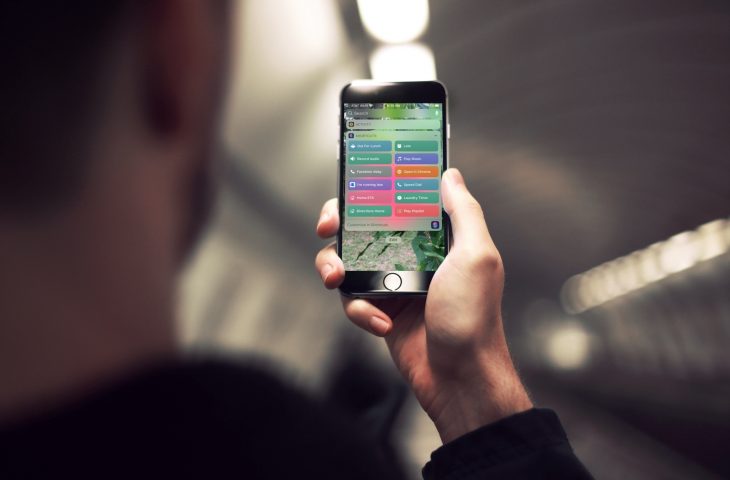
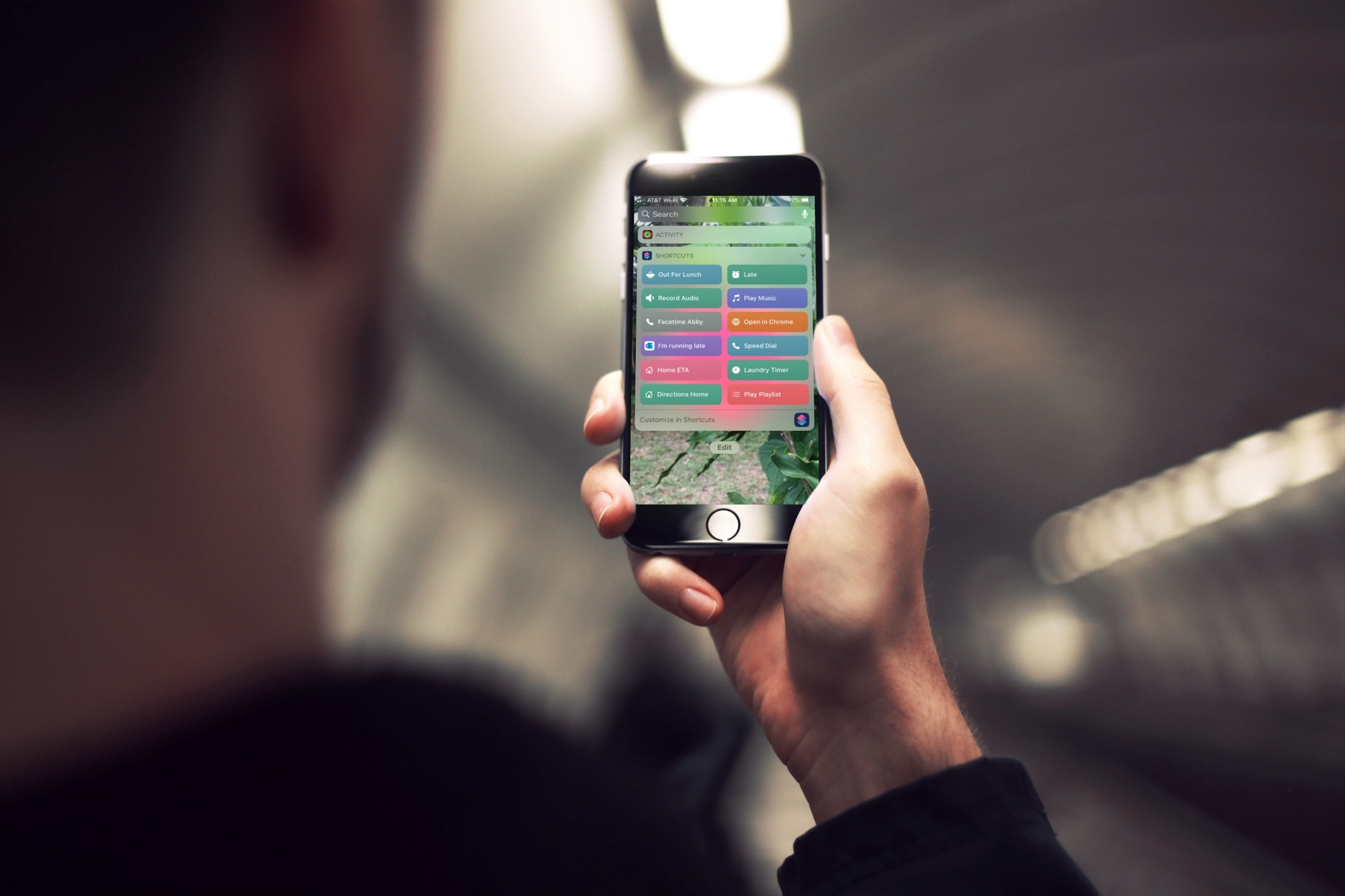
With the Shortcuts app on your iPhone and iPad, you can do a lot of nifty things. You can add an album to your Home screen, use dark mode on websites, and enforce picture-in-picture for YouTube on iPad. You can also use the app to create Shortucts widgets for your Today View screen. This lets you do things faster and easier because you don’t have to open an app first. For some ideas and suggestions, here are seven cool widgets that you can create in Shortcuts for your iPhone and iPad.
Create a Shortcuts widget on iPhone
The Shortcuts app
For each of these widgets, you’ll head to the Shortcuts app and tap the Gallery tab. Search for the shortcut with the names lists below or if you’re on your iPhone or iPad, just tap the link.
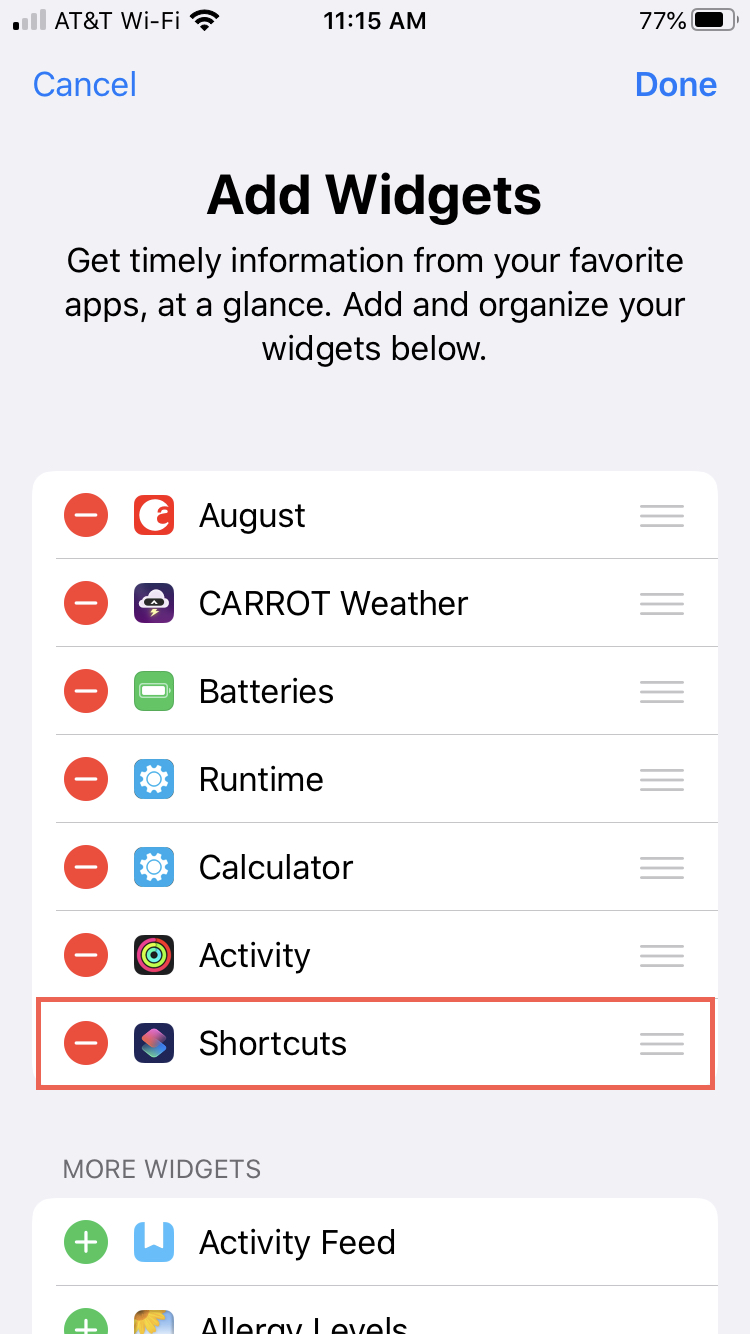
Also, make sure that you have Shortcuts enabled as a widget on your Today View screen.
1) Access Today View, scroll to the bottom and tap Edit.
2) Under More Widgets, select the plus sign next to Shortcuts.
3) When Shortcuts appears at the top, you can tap and drag it to a new spot if you like.
4) Tap Done.
Now when you access your Today View screen, you’ll see all of the widgets you create and add in the Shortcuts widget area.
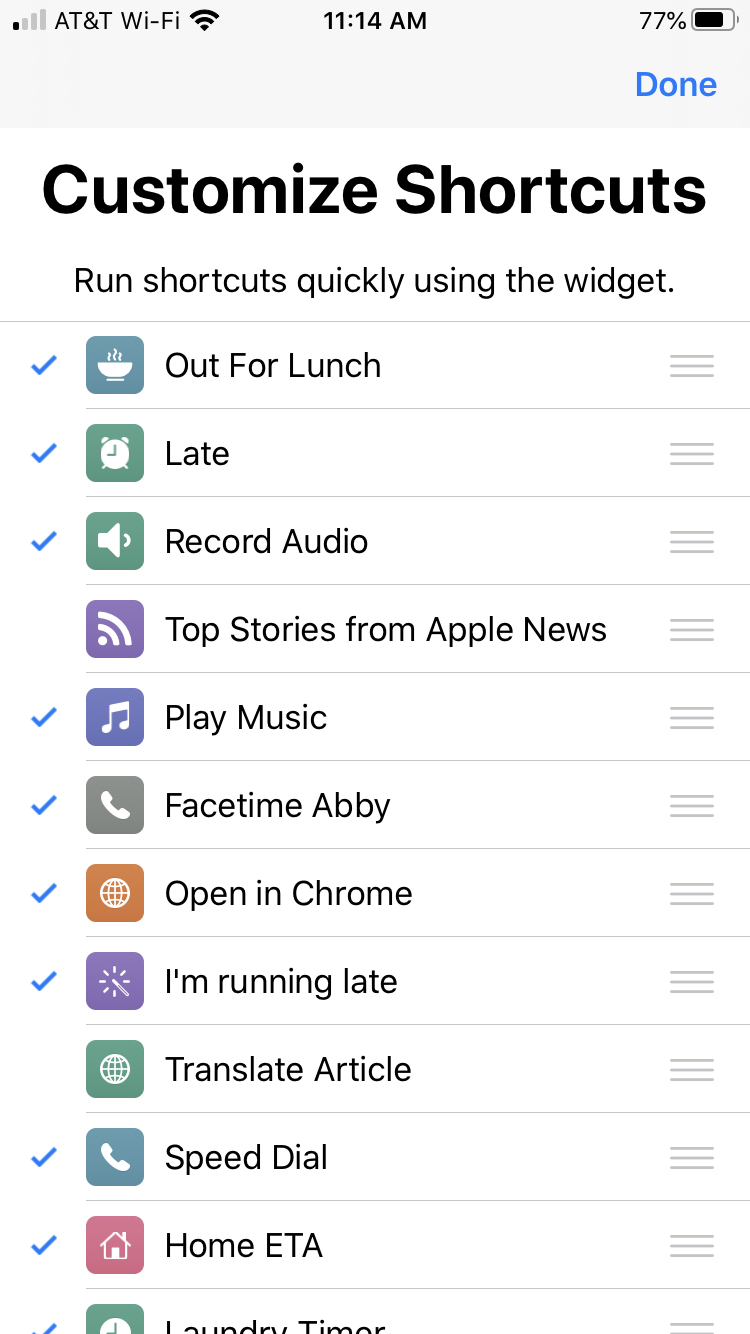
Just tap the one you want to use. If you tap Customize Shortcuts, you can check or uncheck those you want to use and drag and drop to rearrange the order.
1. Speed Dial
Make a quick call to anyone with a tap using the Speed Dial shortcut.
Tap to Add Shortcut and then enter or use the plus sign to choose the phone number to call. Tap Done.
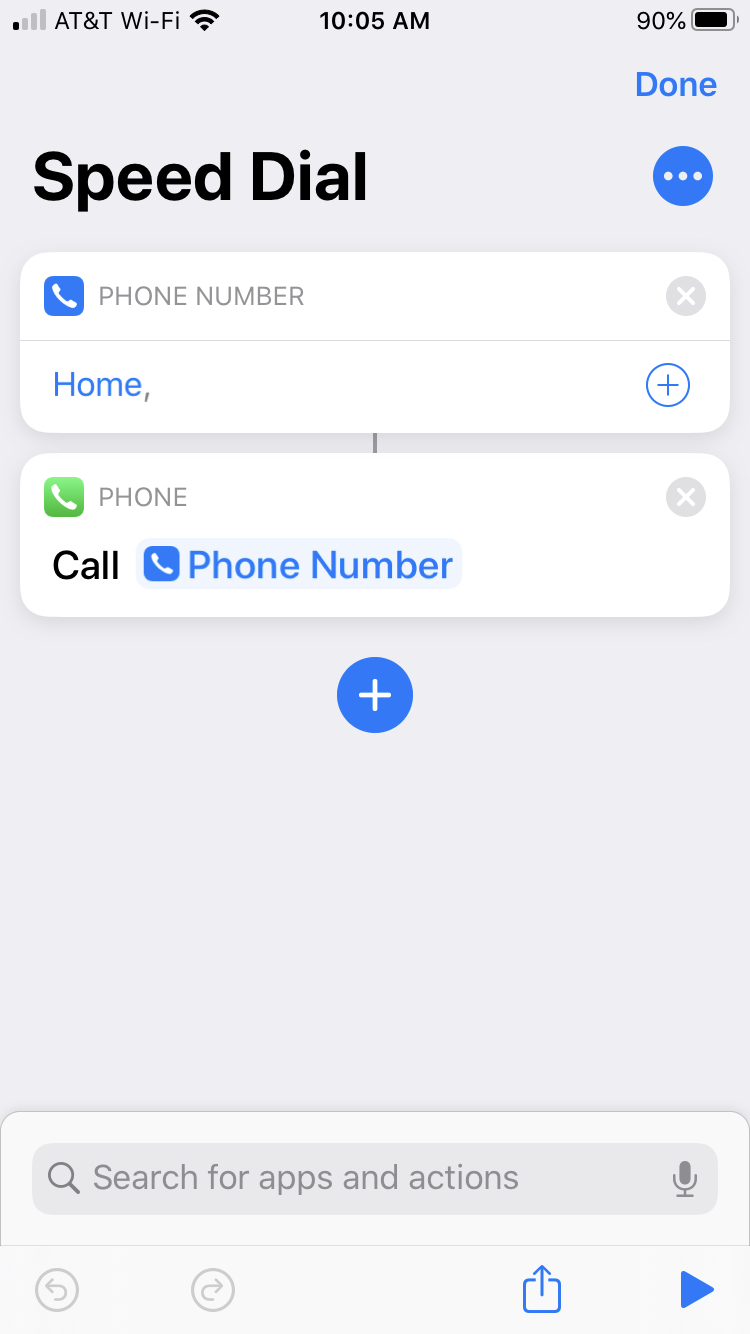
The first time you use the widget, you’ll need to allow access, so tap OK. Moving forward, the number you pick will be dialed with a tap.
2. Home ETA
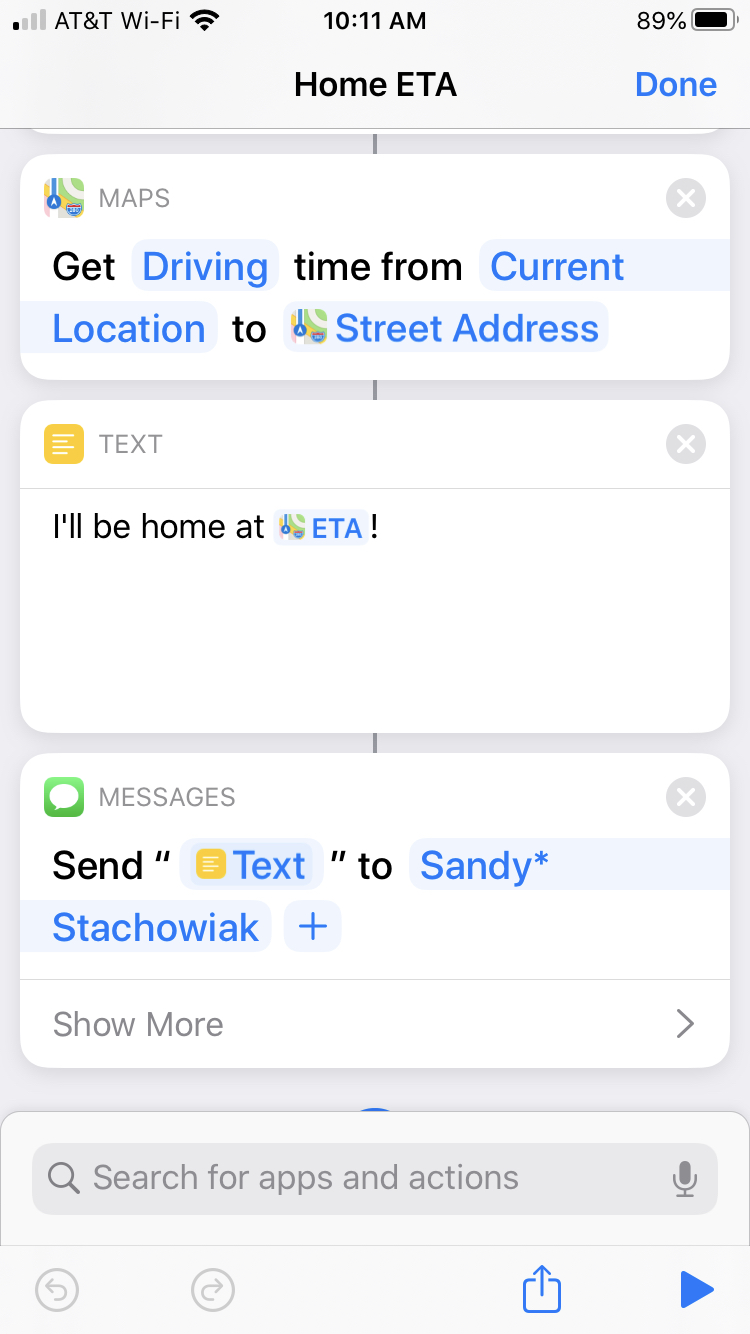
Let your family or friends know when you’ll arrive with the Home ETA widget.
Tap to Add Shortcut and then enter home street address and city. Enter a phone number or email for those you want to notify. You can also tap the plus sign to pick a contact. Tap Done.
When you use the widget, depending on if you choose a phone number (for a text) or email, a message will pop up showing what time you’ll be home. Just hit Send and that’s it!
You can customize the widget with the message and recipients.
3. Directions Home
Get fast directions home from any location with the Directions Home widget.
Tap to Add Shortcut and then enter home street address and city. Pick from Apple Maps or Google Maps and tap Done.
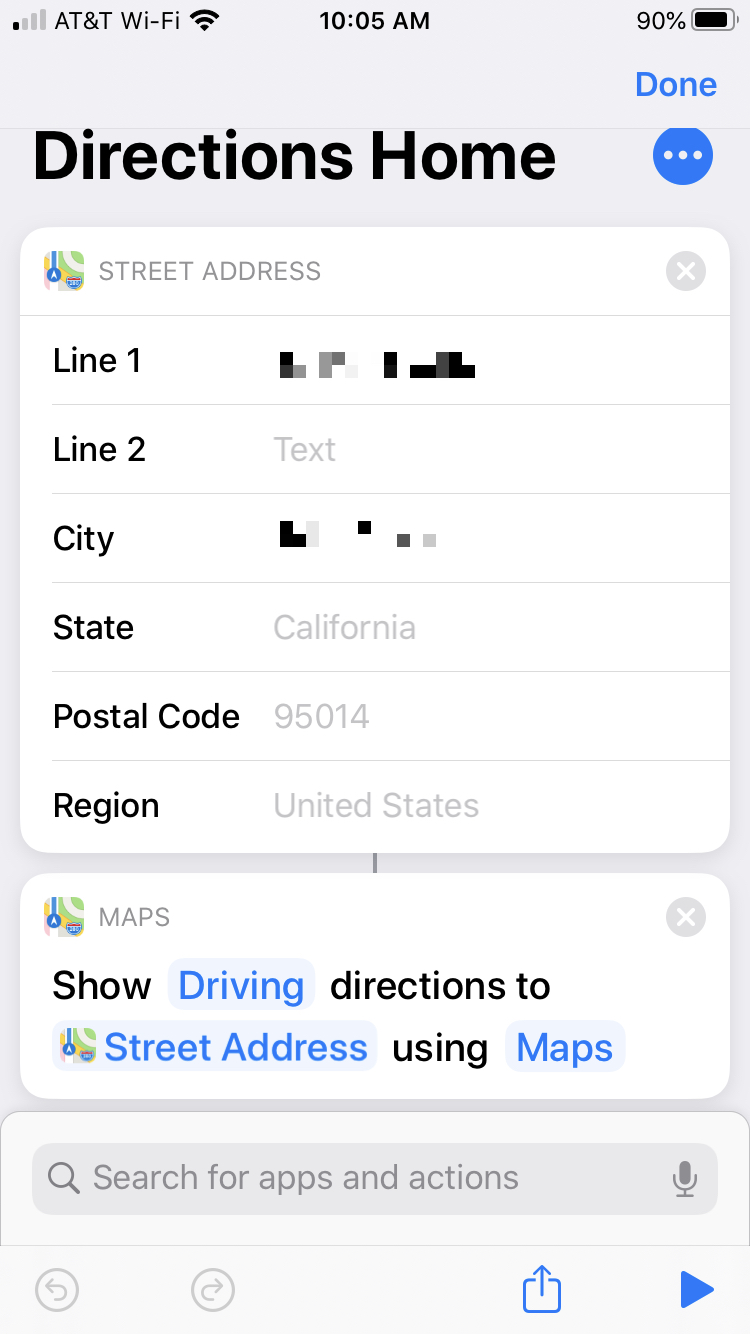
When you tap to use the widget, the maps app you pick will pop open to direct you home.
4. Laundry Timer
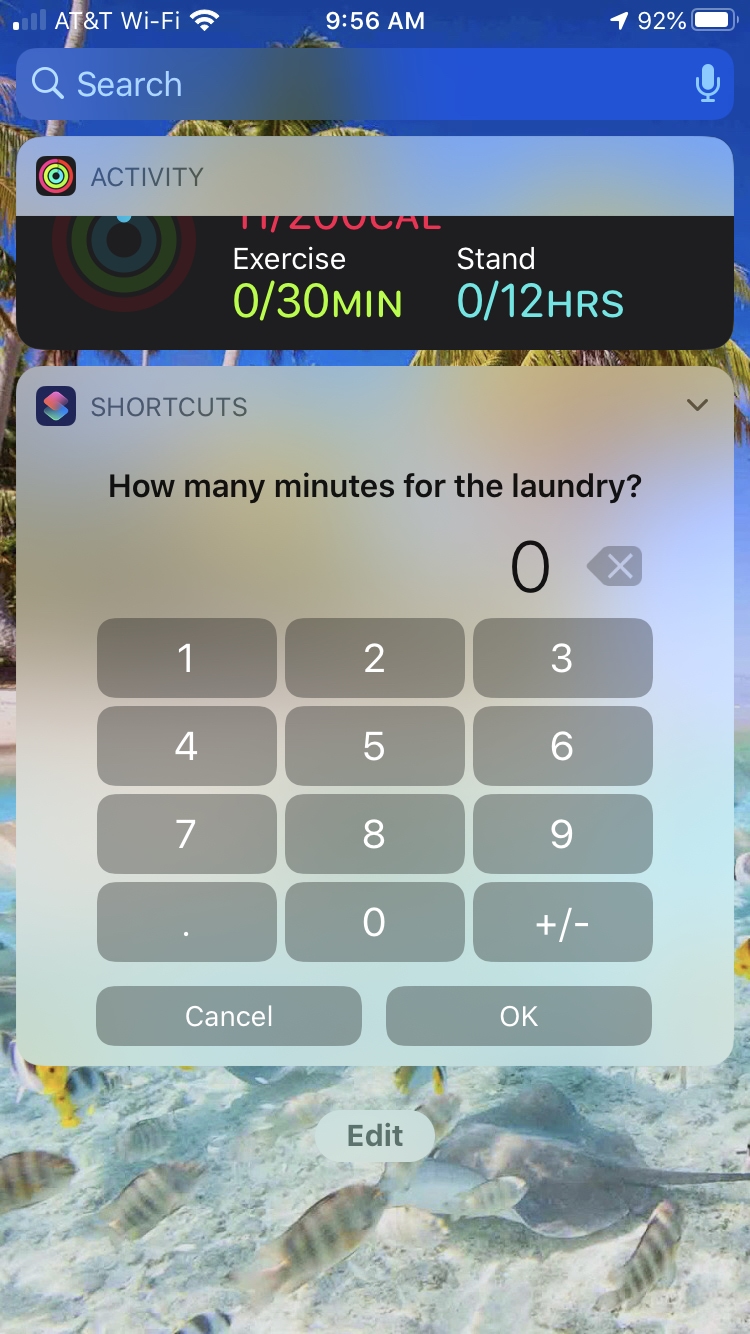
If you’re taking care of the laundry, the Laundry Timer widget is terrific. You can carry on with your other chores and get a reminder when you need to toss the laundry into the dryer or when it’s ready to be folded.
Tap to Add Shortcut and then just use the widget. You’ll be asked to enter the number of minutes for the timer and tap OK. When time’s up, you’ll get a handy reminder.
Note: This shortcut uses your Reminders app, so you can use it for anything, not just laundry.
5. Play Playlist
Listen to your favorite tunes in a tap with the Play Playlist widget.
Tap to Add Shortcut, tap Choose to pick your playlist, and tap Done.
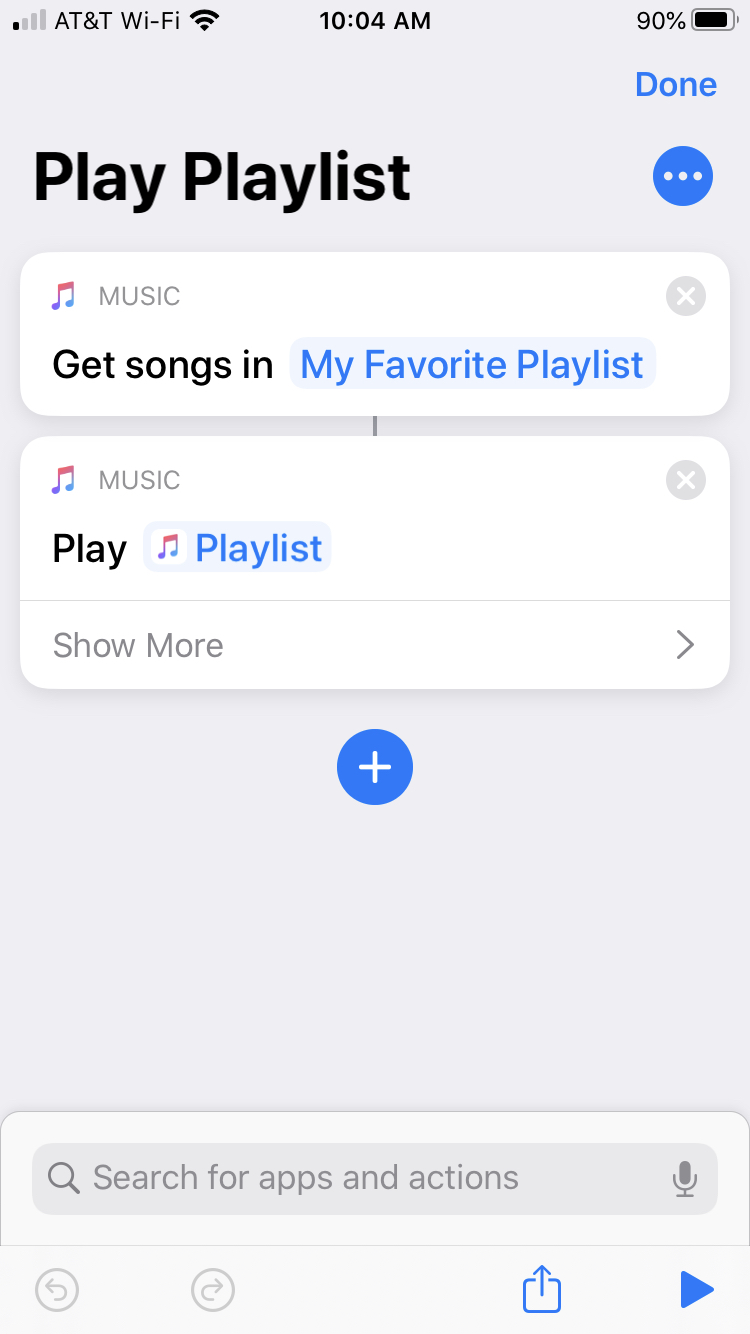
This is the quickest and easiest way to play the songs you love!
6. Log Water
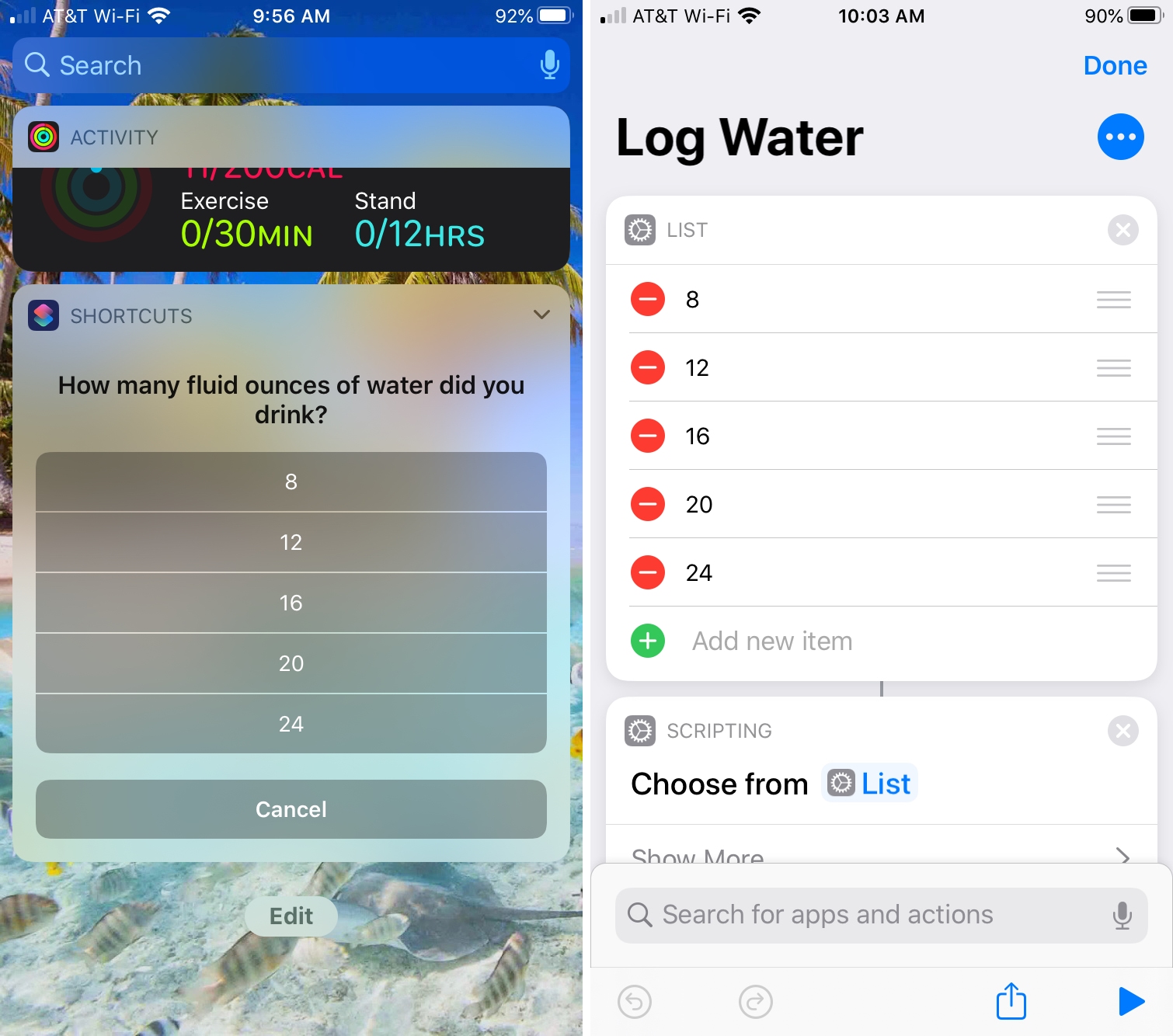
Want to keep track of how much water you drink each day? The Log Water widget is ideal and lets you add how much you drink with a tap.
Tap to Add Shortcut. If you haven’t allowed access to read and write water data in the Health app, you’ll be prompted to do so the first time.
After that, just tap the widget, select an amount of water in ounces, and it’s logged for you. You can customize the widget with the amounts, value, and type of drink.
7. Running Late
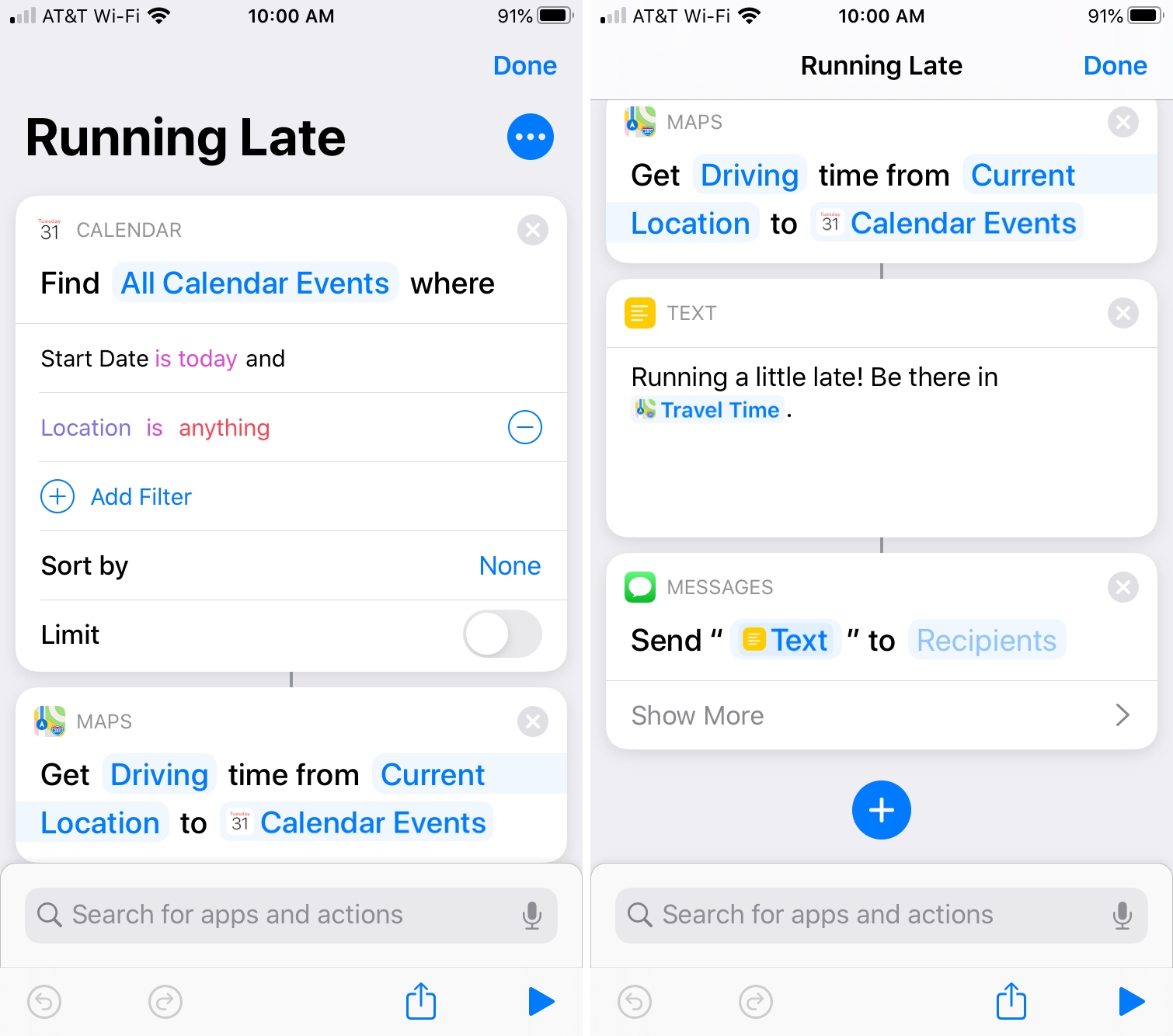
No matter where you’re headed, a meeting, an event, or an appointment, you can quickly let people know if you’re Running Late.
Tap to Add Shortcut and it will be added to your My Shortcuts area. Then tap the widget in Today View and select the event from a list displayed from your calendar. A text will open in Messages showing how late you will be. Just add your recipient and hit Send.
You can also customize the widget with things like the message you want to send, the recipients, and more.
Wrapping it up
These are just some of the awesome widgets you can create and use with the Shortcuts app; there are plenty more out there! Are you going to use one of these widgets or do you have one that you find super handy and want to recommend it? Let us know in the comments below!