

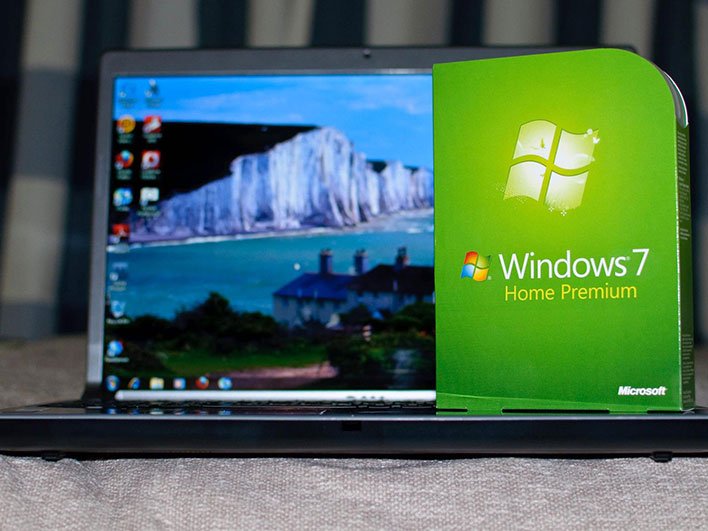
Reports of the black wallpaper issue are popping up in various places on the web, including over at Reddit and on Microsoft’s own support forum.
Others chimed in with similar complaints.
Icons and start bar color are unaffected.
The only solution was to uninstall the update. But now my PC is less secure.
Microsoft, please fix this!,” another user wrote on Microsoft’s support forum.
How To Fix The Black Wallpaper Issue Affecting Windows 7 PCs
Unfortunately, it’s not yet clear if Microsoft will fix the issue, since it is no longer supporting Windows 7. We hope it does, because it’s a bad look to break something with a final update and then essentially tell users, ‘Too bad!’.
Fortunately, there are a couple of workarounds. One is to uninstall the KB4534310 update, though we don’t suggest going that route. The other is a clever trick outlined by BleepingComputer. Since the stretch option is borked right now, you can take a screenshot of of your desktop with the image stretched out, and then use that resulting image as your background without the stretch option enabled.
It’s a bit of a hassle, because you need to have a clean desktop. To do this, follow these steps…
- Go into the Desktop Background settings and select the Fill option to restore your custom image, then select Stretch again. It will stretch the image as normal until your reboot your PC, at which point it is replaced by a black wallpaper. So don’t reboot after doing this. Save the changes.
- Right-click on your desktop, select View, uncheck Show Desktop icons, and select Show Desktop Gadgets.
- Exit all windows and hit the Print Screen key to take a screenshot. Using your image editing program of choice (MS Paint, Photoshop, GIMP, or whatever), save your screenshot.
- Go into the Desktop Background settings and use your saved image as the new background. In the position setting, select Center. You can now safely reboot your PC without having the background revert to a black wallpaper.
- Right-click on your desktop, select View, and re-enable Show Desktop icons.
It’s a bit annoying to go through all of that, but once you do, Windows 7 will properly display your background. Alternatively, you can wait and see if Microsoft fixes the issue on its own.
‘).insertAfter(jQuery(‘#initdisqus’));
}
loadDisqus(jQuery(‘#initdisqus’), disqus_identifier, url);
}
else {
setTimeout(function () { disqusDefer(); }, 50);
}
}
disqusDefer();
function loadDisqus(source, identifier, url) {
if (jQuery(“#disqus_thread”).length) {
jQuery(“#disqus_thread”).remove();
}
jQuery(‘
‘).insertAfter(source);
if (window.DISQUS) {
DISQUS.reset({
reload: true,
config: function () {
this.page.identifier = identifier;
this.page.url = url;
}
});
} else {
//insert a wrapper in HTML after the relevant “show comments” link
disqus_identifier = identifier; //set the identifier argument
disqus_url = url; //set the permalink argument
//append the Disqus embed script to HTML
var dsq = document.createElement(‘script’); dsq.type = ‘text/javascript’; dsq.async = true;
dsq.src = ‘https://’ + disqus_shortname + ‘.disqus.com/embed.js’;
jQuery(‘head’).append(dsq);
}
jQuery(‘.show-disqus’).show();
source.hide();
};
function disqusEvent()
{
idleTime = 0;
}