

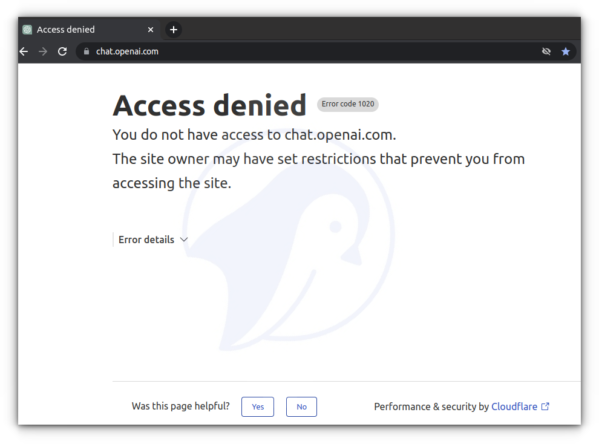
ChatGPT (short for Chat Generative Pre-trained Transformer) is a chatbot by OpenAI. It provides answers to your queries using learning techniques based on AI/ML. Unfortunately, ChatGPT deny access when connected via VPN (Virtual Private Network) such as WireGuard or OpenVPN, and you will be blocked with the following message:
Let us see how to skip the ChatGPT domain from WireGuard or OpenVPN access while you can access corporate resources behind VPN.
nixCraft: Privacy First, Reader Supported
- nixCraft is a one-person operation. I create all the content myself, with no help from AI or ML. I keep the content accurate and up-to-date.
- Your privacy is my top priority. I don’t track you, show you ads, or spam you with emails. Just pure content in the true spirit of Linux and FLOSS.
- Fast and clean browsing experience. nixCraft is designed to be fast and easy to use. You won’t have to deal with pop-ups, ads, cookie banners, or other distractions.
- Support independent content creators. nixCraft is a labor of love, and it’s only possible thanks to the support of our readers. If you enjoy the content, please support us on Patreon or share this page on social media or your blog. Every bit helps.
Procedure to skip ChatGPT from WireGuard or OpenVPN on Linux
The logic is straightforward. Find the chat.openai.com IP address and set the routing policy to skip the VPN interface. By default, WireGuard or OpenVPN will route all traffic via the VPN interface but I will set metrics lower than WireGuard or OpenVPN interface and directly route the chat.openai.com traffic via my router instead of the VPN. My setup is as follows:
- Debian or Ubuntu Linux desktop
- WireGuard or OpenVPN located at Linode or AWS
- Default router IPv4: 192.168.2.254
NOTE: Enter these commands on your Linux WireGuard VPN client, not the WireGuard Linux server. In other words, this only works on the Linux desktop operating system and not on macOS or Windows 10/11 desktops.
Step 1 – Find your default routing info
Once connected to WireGuard/OpenVPN, use the ip command to list the routing table:$ ip route show
Here is what I see:
default via 192.168.2.254 dev enp0s31f6 proto dhcp metric 100
10.83.200.0/24 dev lxdbr0 proto kernel scope link src 10.83.200.1
169.254.0.0/16 dev ln-sg scope link metric 1000
172.16.0.0/24 dev ln-sg proto kernel scope link src 172.16.0.6 metric 50
192.168.2.0/24 dev enp0s31f6 proto kernel scope link src 192.168.2.25 metric 100
My WireGuard interface named ‘ln-sg’ take priority using metric 50 over the default metric 100. So the trick is to add the chat.openai.com IP address with a lower metric and directly pass it via 192.168.2.254 default gateway IP address.
An explanation of the Automatic Metric feature for IPv4 routes
Router metrics are configuration values to make routing decisions. Router metrics help the router choose the best route among multiple feasible routes to a destination. The route will go in the direction of the gateway with the lowest metric. A router metric is typically based on information such as path length, bandwidth, load, hop count, path cost, delay, maximum transmission unit (MTU), reliability and communications cost.
| Link/Dest/Route | Metric |
|---|---|
| chat.openai.com (or any other IP/domain of your choice) | 10 |
| WireGuard/OpenVPN | 50 |
| Default | 100 |
Step 2 – Finding out the chat.openai.com IP address
Use the dig command or host command:$ d='chat.openai.com'
$ dig +short A "$d" | grep -v '.$'
$ ips="$(dig +short A "$d" | grep -v '.$')"
$ echo "$ips"
Step 3 – Adding the chat.openai.com IP address to routing table
Let us set some shell variable:$ my_gw="192.168.2.254" #Default GW
$ metric="10" #Routing metric value
Let us use bash for loop to add those IPs:
for i in $ips
do
  sudo ip route add "$i" via "$my_gw" metric "$metric"
done
Want to list newly added IP address? Use the ip command:$ ip route show
$ ip route show | grep -w 'metric 10'
Here is what I see:
104.18.2.161 via 192.168.2.254 dev enp0s31f6 metric 10
104.18.3.161 via 192.168.2.254 dev enp0s31f6 metric 10
Step 4 – Test it
Fire the web browser and test it by visiting https://chat.openai.com/ URL:

Click to enlarge
And voila. That is how you can skip the ChatGPT domain from WireGuard or OpenVPN on Linux.
Step 5 – Deleting the chat.openai.com IP address from the routing table
Again use the ip command as follows:$ for i in $ips; do sudo ip route del "$i"; done
Step 6 – Creating a shell script for automation
The chat.openai.com will change its IP address from time to time. So here is a generic script that adds, removes, and lists chat.openai.com and a few other domains that refused to work when connected to VPN.
routing.policy shell script
#!/bin/bash
# routing.policy - Main script to add, remove and list routing policy
# Author : Vivek Gite {www.cyberciti.biz} under GPLv 2.x+
# ----------------------------------------------------------------------
set -e

# Set metric and gateway as per your needs
metric="10"
my_gw="192.168.2.254"
domain="chat.openai.com facebook.com fbcdn.net static.xx.fbcdn.net www.facebook.com"
ips=""
me="${0##*/}" # who am I?

get_domain_ip_lists(){
    for d in $domain
    do
        ips="${ips} $(dig +short A "$d" | grep -v '.$')"
    done
    ips="${ips/$'n'/ }" # remove 'n'
    ips="$(tr ' ' 'n'<<<"${ips}" | sort -u | xargs)" # remove duplicate ips
}

is_route_exists(){
    local i="$1"
    out="$(ip route show "$i")"
    if [[ "$out" != "" ]]
    then
        return 0  # True
    else
        return 1 # False
    fi

}
add_opneapi_route(){
    check_for_root_user
    echo "Adding ${ips/$'n'/,} to routing table ..." 1>&2
    for i in $ips
    do
        if ! is_route_exists "$i"
        then
            sudo ip route add "$i" via "$my_gw" metric "$metric"
        else
            echo "$me route for $i already exists, skiping ..."
        fi
    done
}

remove_opneapi_route(){
    check_for_root_user
    echo "Removing ${ips/$'n'/,} from routing table ..." 1>&2
    for i in $ips
    do
        if is_route_exists "$i"
        then
            sudo ip route del "$i" via "$my_gw"
        else
            echo "$me route for $i not found, skiping ..."
        fi
    done
}
show_openapi_route_status(){
    echo "Routing info for the '$domain' (${ips/$'n'/,}) ..." # remove newline from the ${ips}
    for i  in $ips
    do
        ip route show "$i"
    done

}

check_for_root_user(){
if [[ $EUID -ne 0 ]]; then
   echo "$me script must be run as root" 1>&2
   exit 1
fi
}

## main ##
get_domain_ip_lists # set '$ips'
case "$me" in
    routing.policy.add) add_opneapi_route;;
    routing.policy.delete) remove_opneapi_route;;
    routing.policy.remove) remove_opneapi_route;;
    routing.policy.show) show_openapi_route_status;;
    routing.policy.status) show_openapi_route_status;;
    *) echo "Usage: routing.policy.add|routing.policy.delete|routing.policy.status";;
esac
Creating softlink using the ln command
First, set up execution permission using the chmod command
$ chmod +x -v routing.policy
mode of 'routing.policy' changed from 0664 (rw-rw-r--) to 0775 (rwxrwxr-x)
Now set those links:$ ln -sv routing.policy routing.policy.add
$ ln -sv routing.policy routing.policy.remove
$ ln -sv routing.policy routing.policy.delete
$ ln -sv routing.policy routing.policy.show
$ ln -sv routing.policy routing.policy.status
Verify it using the ls command:$ ls -l routing.policy*
Outputs:
-rwxrwxr-x 1 vivek vivek 1913 Feb  3 00:07 routing.policy
lrwxrwxrwx 1 vivek vivek   14 Feb  3 00:08 routing.policy.add -> routing.policy
lrwxrwxrwx 1 vivek vivek   14 Feb  3 00:08 routing.policy.delete -> routing.policy
lrwxrwxrwx 1 vivek vivek   14 Feb  3 00:08 routing.policy.remove -> routing.policy
lrwxrwxrwx 1 vivek vivek   14 Feb  3 00:08 routing.policy.show -> routing.policy
lrwxrwxrwx 1 vivek vivek   14 Feb  3 00:08 routing.policy.status -> routing.policy
Test it:$ sudo ./routing.policy.add
$ sudo ./routing.policy.status
$ traceroute chat.openai.com #<--test routing
$ sudo ./routing.policy.delete
Summing up
I tested this on my Debian and Ubuntu Linux desktop with WireGuard and OpenVPN. It worked like a charm and should work with any other Linux distro as long as ip command works. In short, we can skip specific IP addresses from being routed through a VPN connection on Linux (or any other operating system such as macOS or BSD) as long as you can add routing rules to the system’s routing table. You can run this script automatically by adding a hook when NetworkManager connects to your OpenVPN or WireGuard interface. For example, put a script in /etc/network/if-up.d/ and make it executable. This will run the script when the VPN interface comes online. Similarly, put a script in /etc/network/if-down.d/ when you want to run it when the VPN interface goes down. See NetworkManager manual page using the man command:$ man 8 NetworkManager
Did you notice? ????
nixCraft is ad-free to protect your privacy and security. We rely on reader support to keep the site running. Please consider subscribing to us on Patreon or supporting us with a one-time support through PayPal or purchase official merchandise. Your support will help us cover the costs of hosting, CDN, DNS, and tutorial creation.