

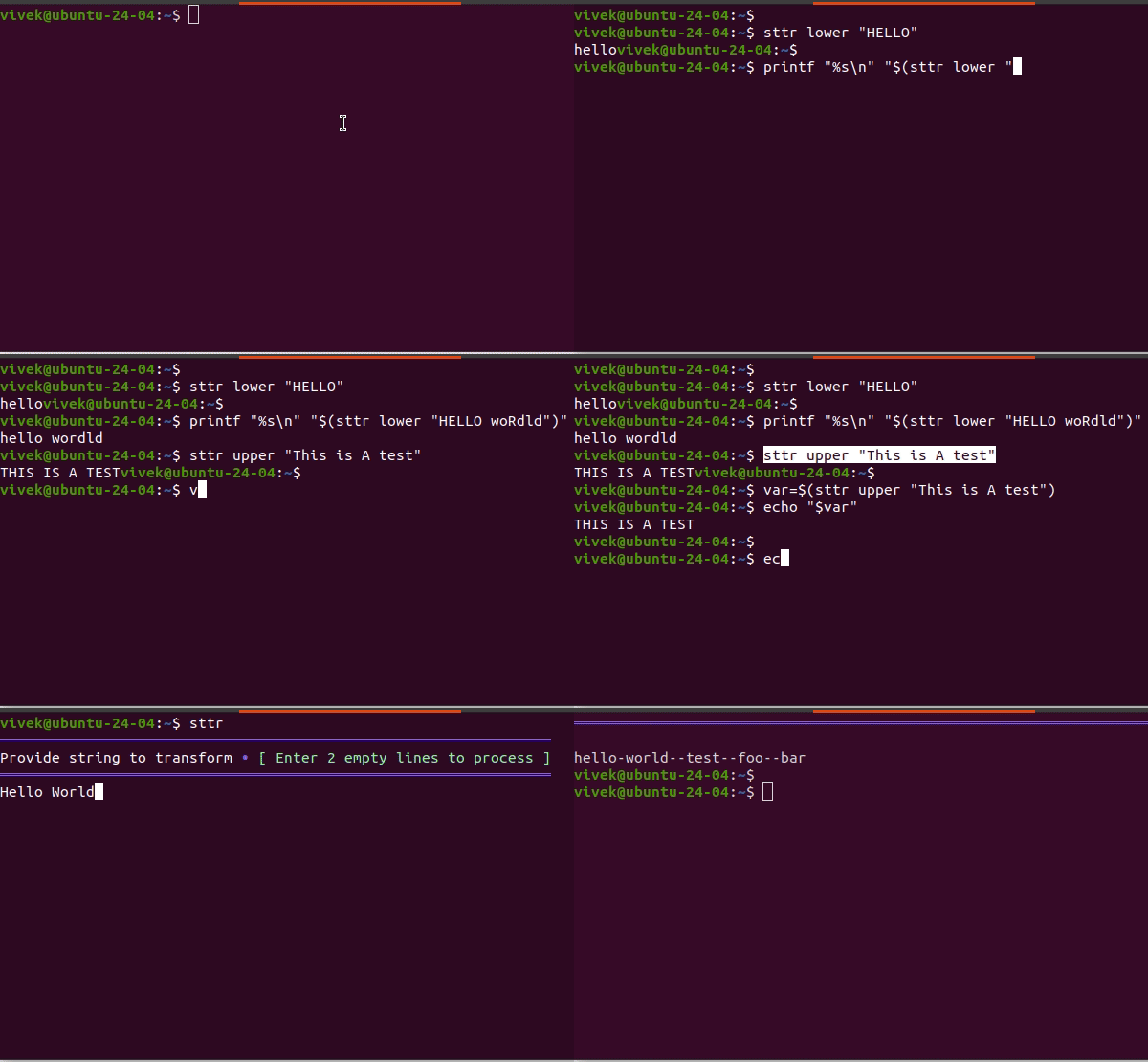

sttr demo
The sttr is a free and open-source command-line tool in Golang that lets you easily change and modify text. You can perform transformation operations on the string, such as hashing text, string manipulation, and more. sttr is beneficial for developers and *nix users requiring swift modification to strings or files directly via the command line or TUI. It is helpful in your scripting, data processing, and automation tasks at the CLI.
Installing sttr awsome command line tool on Linux or Unix for transformation the string
Type commands as per your Linux or Unix distro version.
macOS install sttr
First, enable the Homebrew and type the brew command as follows:vivek@macbook~$ brew tap abhimanyu003/sttr
vivek@macbook~$ brew install sttr
If you have macports installed, try the port command as follows:vivek@macbook~$ sudo port install sttr
Arch Linux install sttr
You need to use the yay command:vivek@arch~$ yay -S sttr-bin
Debian/Ubuntu Linux and other distro with snap
If you have snaps enabled, type the following snap command
vivek@ubuntuVM~$ sudo snap install sttr

Installing sttr using snap (click to enlarge)
Windows install sttr
Try the curl as follows:C:Users> curl.exe https://webi.ms/sttr | powershell
Other Linux and Unix instillation
You can install sttr by downloading install.sh script from the offical repo. It’s best to install it in the ./bin dir in the $HOME. The syntax is:$ wget https://raw.githubusercontent.com/abhimanyu003/sttr/main/install.sh
$ vim install.sh
$ bash install.sh
Usage
Now that sttr is installed. It is time to use it. The syntax is simple$ sttr command "text"
$ echo -n "text" | sttr command
For example, to transform your text to lower case or upper case, you need to type it as follows:$ echo "THIS is A TeSt" | sttr lower
$ echo "THIS is A TeSt" | sttr upper
To transform your text to CamelCase or kebab-case:$ sttr camel "move_player_Ball"
$ sttr kebab "move_player_Ball"
Here is how to get the SHA512 or SHA256 checksum of your text:$ sttr sha512 "demo foo bar"
$ sttr sha256 "demo foo bar"
You can start sttr in TUI mode as follows:$ sttr
Type your text and press the [Enter] key twice:
This is a Test
You will get menu options:
Getting help about the sttr command
Simply pass the -h or –help option as follows:$ sttr -h
$ sttr --help
$ sttr sha512 -h
OR use the grep command or egrep command as follows:$ sttr -h | grep lower
$ sttr -h | grep -E 'lower|upper'
Conversion
You can convert YAML to JSON text or vice versa. For example, here is something I got using the dig +yaml +short A cyberciti.biz > output.yaml and displayed using cat command
$ dig +yaml +short A cyberciti.biz > output.yaml
$ cat output.yaml
Outputs:
-
  type: MESSAGE
  message:
    type: RECURSIVE_RESPONSE
    query_time: !!timestamp 2024-05-24T21:03:56.750Z
    response_time: !!timestamp 2024-05-24T21:03:56.751Z
    message_size: 74b
    socket_family: INET
    socket_protocol: UDP
    response_address: "127.0.0.53"
    response_port: 53
    query_address: "0.0.0.0"
    query_port: 0
    response_message_data:
      opcode: QUERY
      status: NOERROR
      id: 19668
      flags: qr rd ra
      QUESTION: 1
      ANSWER: 2
      AUTHORITY: 0
      ADDITIONAL: 1
Let us convert YAML to JSON text:$ sttr yaml-json output.yaml
$ sttr yaml-json output.yaml > output.json
$ cat output.json
Outputs:
[{"message":{"message_size":"74b","query_address":"0.0.0.0","query_port":0,"query_time":"2024-05-24T21:05:18.881Z","response_address":"127.0.0.53","response_message_data":{"ADDITIONAL":1,"ANSWER":2,"AUTHORITY":0,"QUESTION":1,"flags":"qr rd ra","id":22203,"opcode":"QUERY","status":"NOERROR"},"response_port":53,"response_time":"2024-05-24T21:05:18.884Z","socket_family":"INET","socket_protocol":"UDP","type":"RECURSIVE_RESPONSE"},"type":"MESSAGE"}]
You can extract IPv4 and IPv6 from your text:$ sttr extract-ip input.txt
Also it is possible to extract URls:$ sttr extract-urls input.txt
Summing up
That’s just the tip of the iceberg! Sttr is an excellent and fantastic command-line tool for developers and Linux/Unix users. It can perform many more text operations, from encoding/decoding and filtering to converting and extracting URLs, IPs, email addresses, and more. It’s a versatile solution for anyone who works with text regularly at the CLI. For the complete list of features, examples, and detailed usage instructions, be sure to check out the project’s GitHub repository page.
???? Was this helpful? Please add a comment to show your appreciation or feedback.
