


Want to be more efficient with managing your messages on iPhone or iPad? Follow along for how to access edit mode in the Messages app with a two-finger tap on iPhone and iPad.
iOS 13 and iPadOS 13 bring a variety of updates including UI changes across the built-in iOS apps. With the latest software, accessing edit mode in Messages is buried a couple of levels deep, but fortunately, there’s a handy two-finger shortcut.
Below, we’ll look at quickly entering edit mode in the all messages view as well as inside a specific thread in Apple’s first-party Messages app on iPhone and iPad.
How to edit messages on iPhone and iPad with two-finger tap
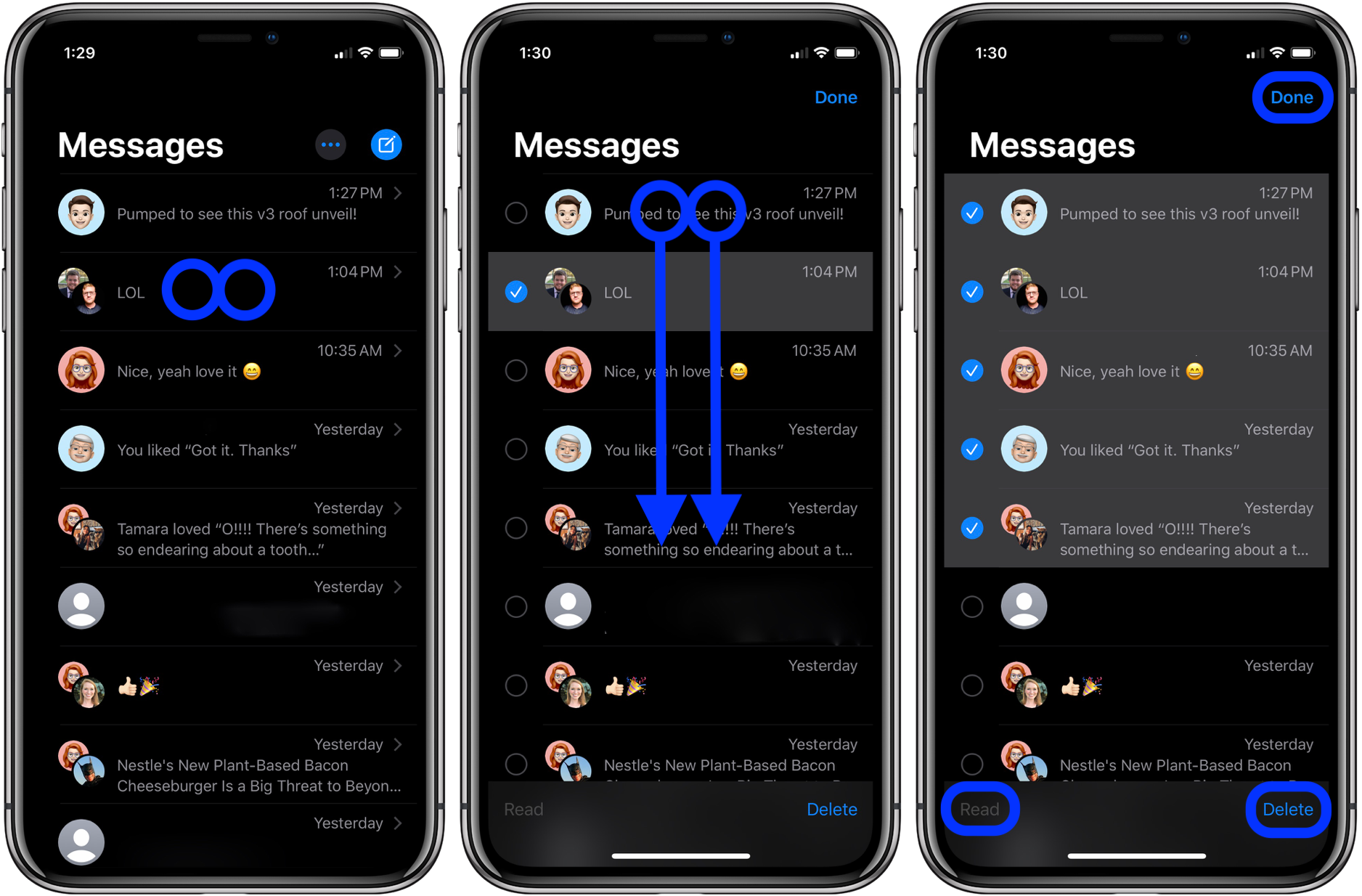
From the all messages view:
- Open the Messages app and head to the all messages view
- Give a two-finger tap on any of the message threads
- Use a two-finger scroll to select multiple messages
- Choose Delete (or Read when applicable)
- Tap Done
Inside a message:
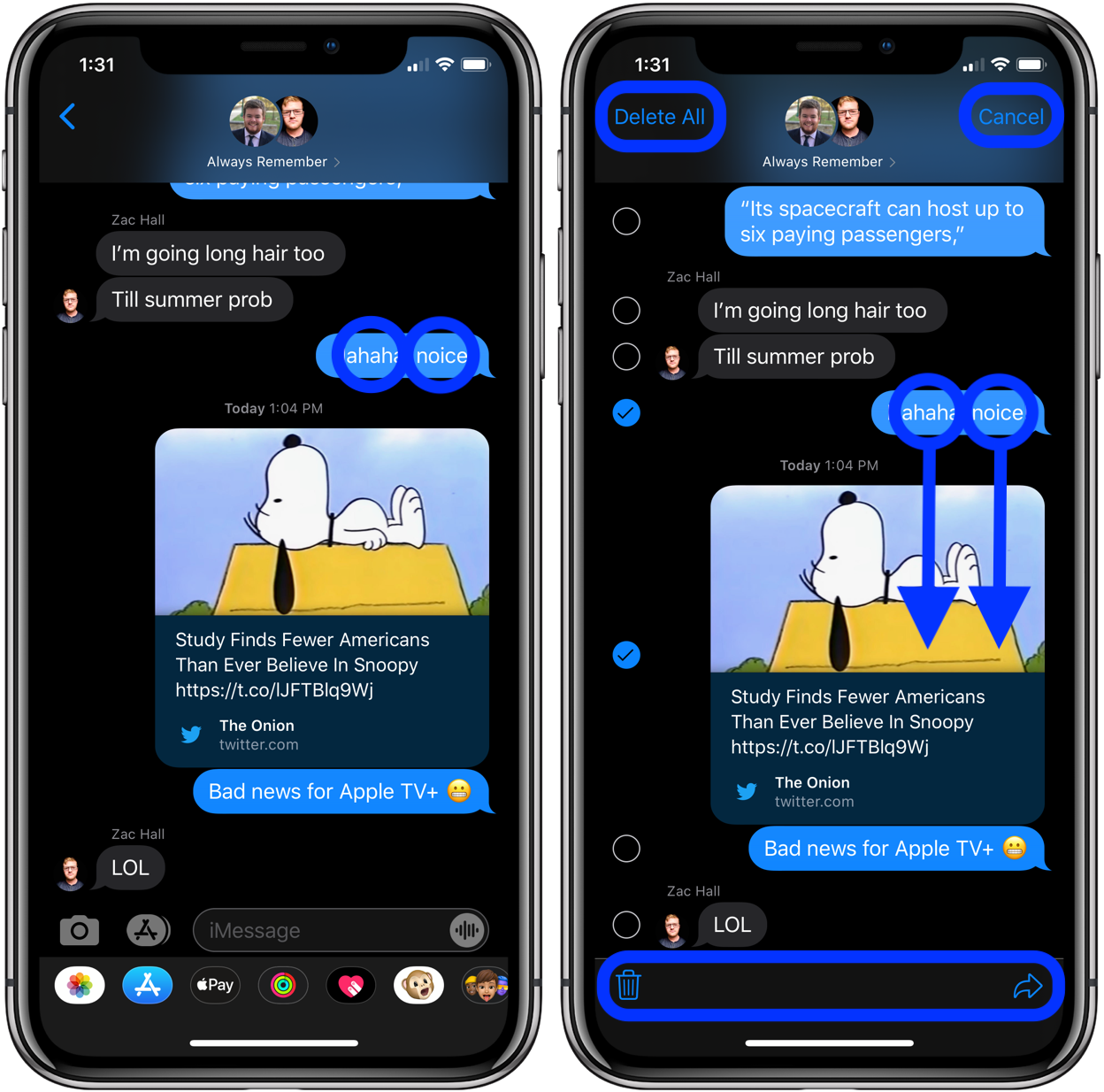
You can also take advantage of the two-finger tap inside a message instead of having to long press, then tap More.
- Open a specific thread inside the Messages app
- Two-finger tap on a message you want to forward or delete
- Use a two-finger scroll to select multiple messages in a thread
Read more 9to5Mac tutorials:
macOS Catalina:
iPhone & iPad:

Check out 9to5Mac on YouTube for more Apple news: