

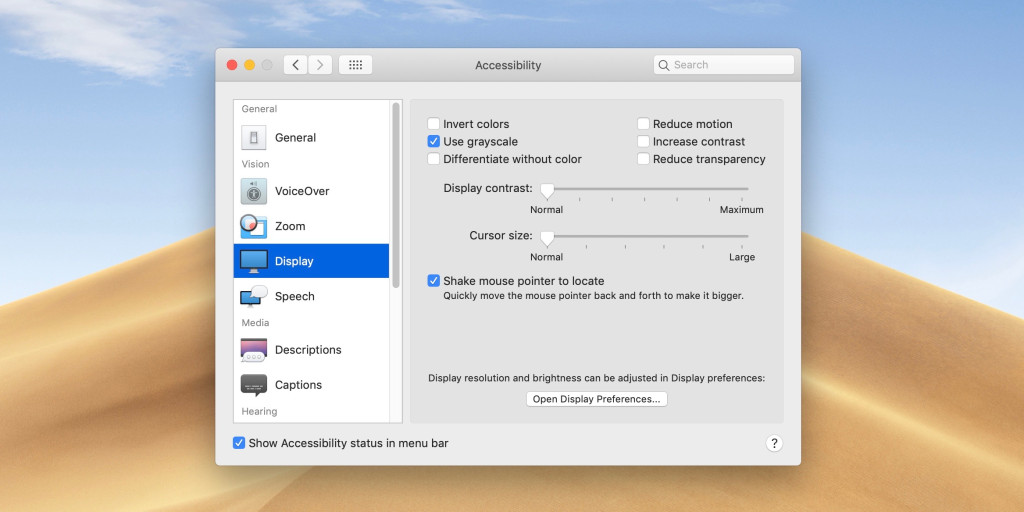
Want to use grayscale on the display of your Mac? Follow along on for how to use this accessibility feature.
Like inverting the colors of your display, using grayscale on a Mac offers greater visibility to some users, particularly with low or impaired vision.
How to use grayscale on your Mac
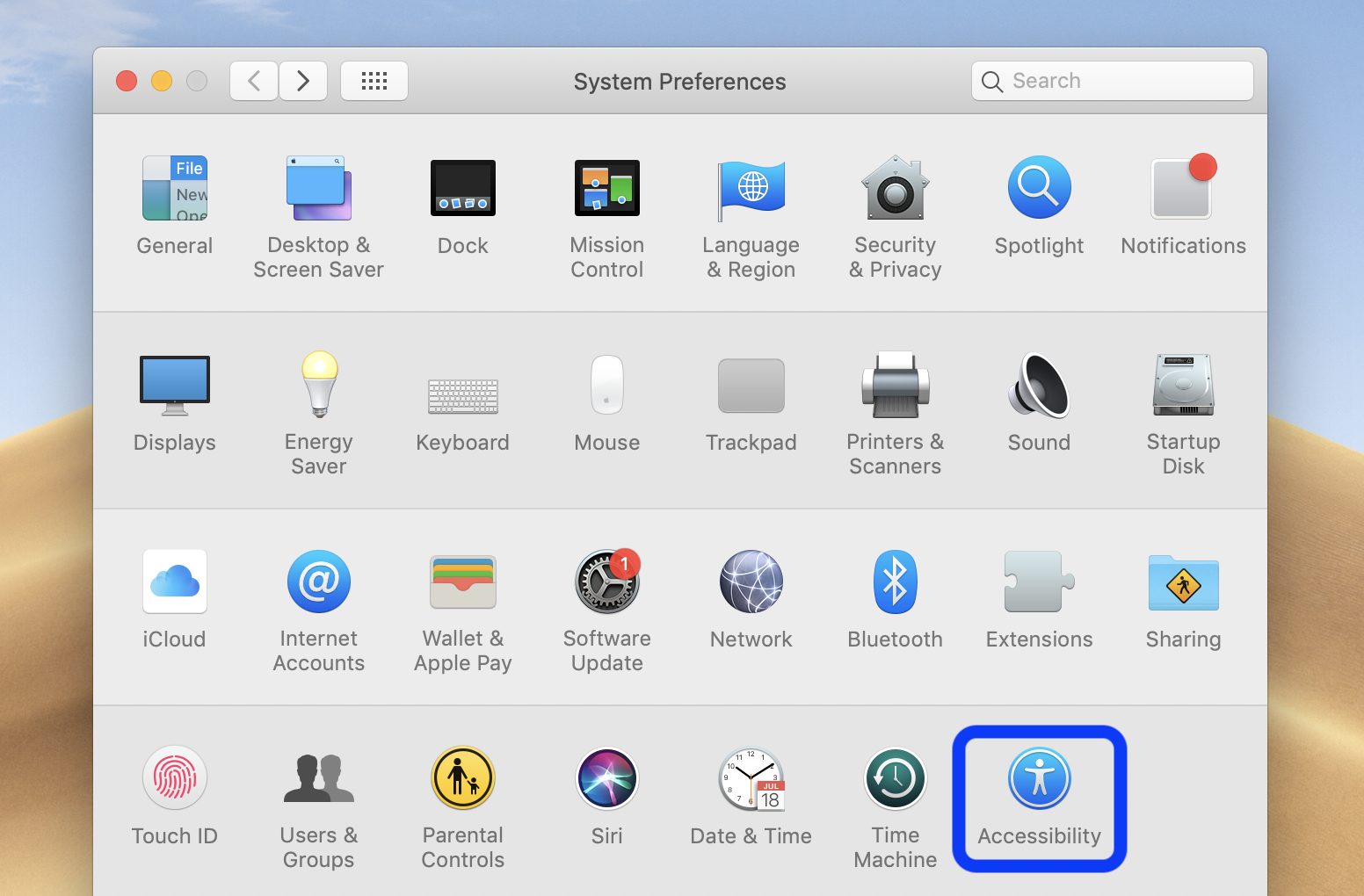
- Open System Preferences on your Mac (you can also pull up Accessibility settings with the keyboard shortcut command + option + F5)
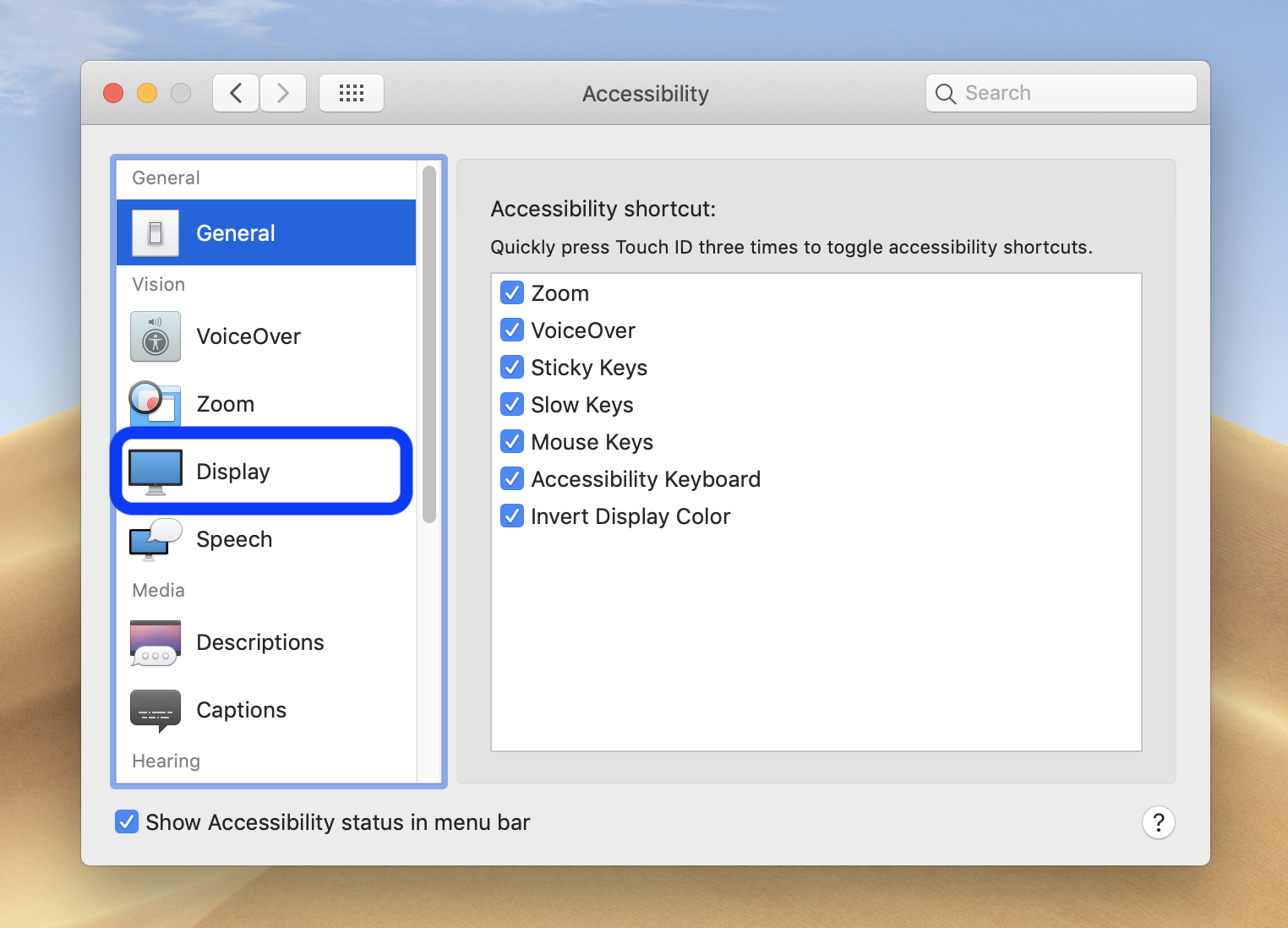
- Head to Accessibility → Display
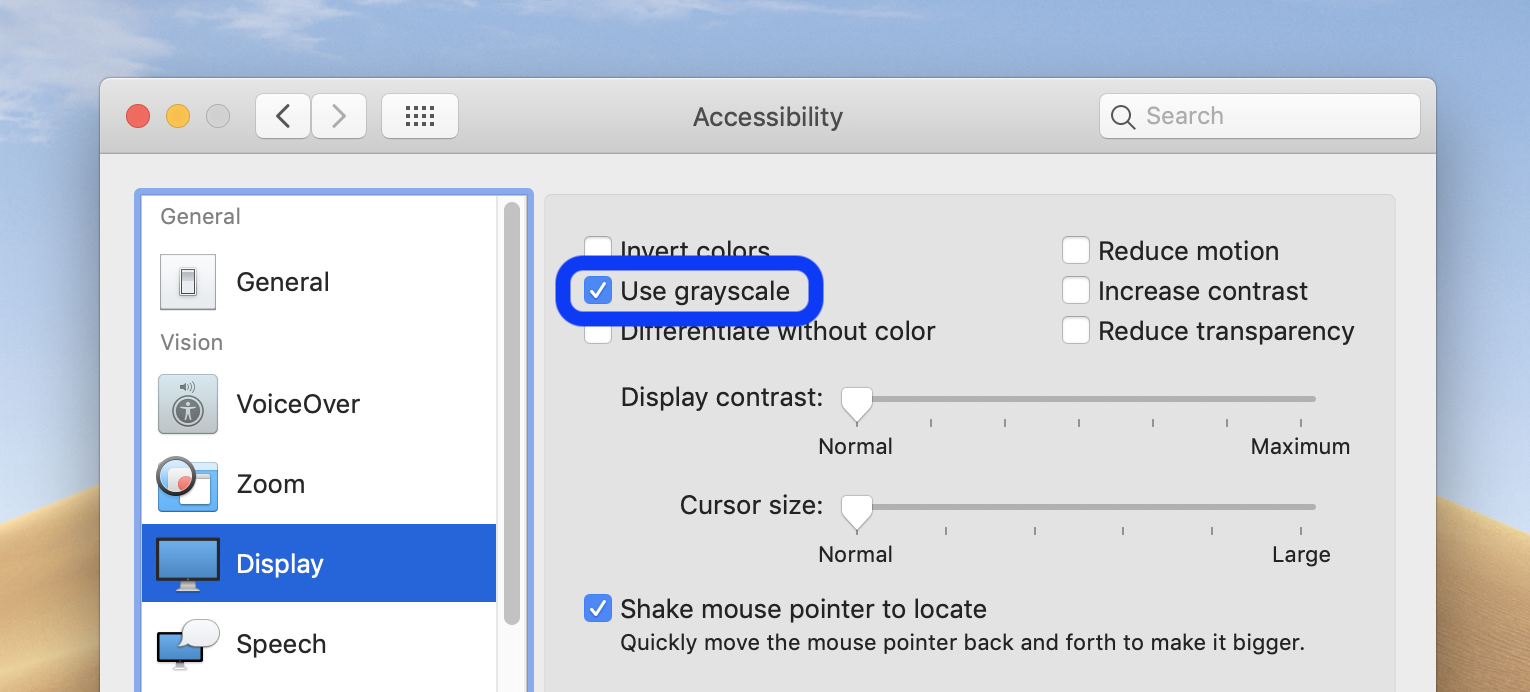
- As shown below, click Use grayscale
Here’s how the steps look:
Once in Accessibility settings, click on Display on the left-hand sidebar.
Now click the check box next to Use Grayscale.
For more help getting the most out of your Apple devices, check out our how to guide as well as the following articles:
FTC: We use income earning auto affiliate links. More.

Check out 9to5Mac on YouTube for more Apple news: