Want to become more efficient with Reminders on your Apple devices? Read on for how to use Siri to set location-based Reminders on iPhone, Apple Watch, iPad, Mac, and HomePod.
Using the Reminders app to alert you about your to-do items at a certain time can be helpful, but real life is fluid and ever-changing, so a location-based Reminder can often be more helpful.
Going beyond typing in Reminders manually with location-based alerts, let’s look at building the habit of doing it with Siri on any of your Apple devices.
Siri: How to add location-based Reminders on iPhone, Apple Watch, iPad, Mac, and HomePod
- On any of your Apple devices, give Siri a command like, “Remind me to buy carrots when I leave the house”
- You can check on your iPhone, iPad, or Mac that the Reminder has been set with the geofence of you leaving your house (or other choice) triggering the alert
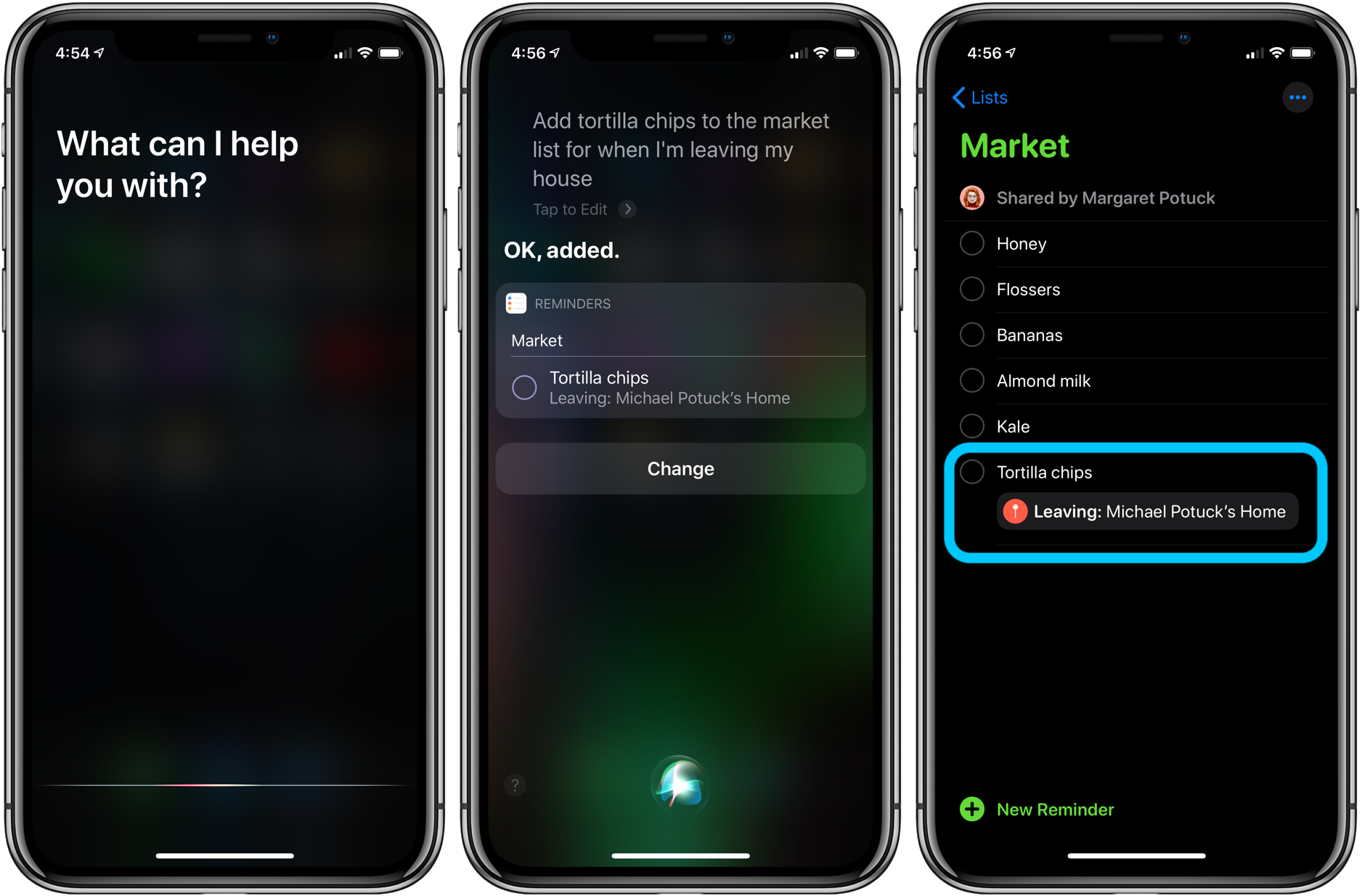
- To have your location-based Reminders show up in a certain Reminders List, try a command where you name a list like “add tortilla chips to the _________ list for when I’m leaving my house”
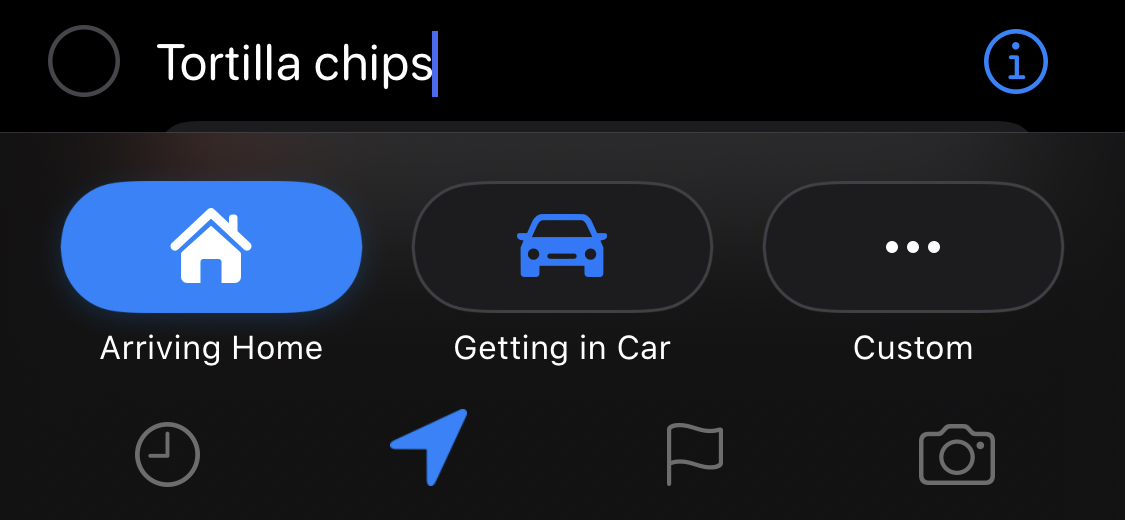
- You can also set location-based Reminders to trigger when you arrive at a location, getting in or leaving your car, or a custom location option
To edit the type of location-based Reminder, on iPhone, iPad or Mac, select the Reminder, then tap the location arrow, then choose another option or use “Custom.”
Here’s how the process looks on iPhone:
Read more 9to5Mac tutorials:
iPhone & iPad:
AirPods Pro:
Mac:
FTC: We use income earning auto affiliate links. More.