

Want to access Notes data on your Mac? Wondering where Notes are stored on the Mac? This article will show you where Notes are stored locally on a Mac and how to access that data. This of course assumes you use the Notes app, with or without iCloud, and if so all Notes will be kept on the Mac locally, including locally kept notes, and caches of notes from iCloud. This stored Notes data includes all Notes texts, images, graphics, drawings, doodles, media, movies, videos, and any other data stored and kept in the Notes app.
This article is aimed for more technical users aiming for direct Notes data access. The vast majority of Mac users can access their Notes by simply launching the “Notes” application on the Mac and finding their notes data there.
Accessing the raw Notes data can be helpful for many purposes, whether you want to manually recover Notes, manually backup Notes data, manually restore Notes data, or access Notes data directly from MacOS or Mac OS X for any other purpose, be in for backups, digital forensics, curiosity, or anything else.
Where Notes Data is Stored Locally on Mac
The path to where Notes are stored locally on the Mac is as follows:
~/Library/Group Containers/group.com.apple.notes/
For iCloud Notes, you may look at the following location:
~/Library/Containers/com.apple.Notes/
To access these Notes locations, use the handy Go To Folder command from Finder:
- From the Finder, pull down the “Go” menu
- Choose “Go To Folder”
- Enter the following path exactly then click go to jump to that folder
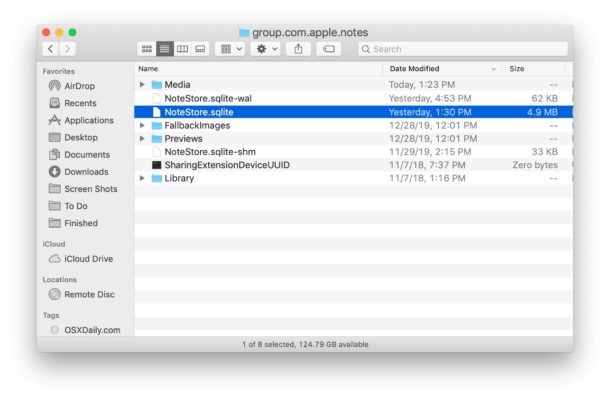
- This folder contains all of your Notes that are stored locally as well as iCloud notes that are cached locally on the Mac, if you wish to backup or recover this data this is the folder you will be working with
- The actual Notes data is in a file called “NoteStore.sqlite”, the text data is stored a SQL Lite database file, whereas all media from Notes are stored in the various directories within this folder, including “Media”, “FallbackImages”, and “Previews”
~/Library/Group Containers/group.com.apple.notes/
Notes Location on Mac from iCloud Notes
Notes that are exclusively kept in iCloud may be found at the following locations on the Mac instead or in addition to the previous location:
~/Library/Containers/com.apple.Notes/Data/CloudKit/
Along with:
~/Library/Containers/com.apple.Notes/Data/Library/Notes/
You can also access the parent directory but you will find many aliases and symbolic links there, which is common with iCloud data (as you may have encountered before if accessing iCloud Drive data from the command line on Mac or through Finder Go To Folder too).
You might notice some overlap depending on where you keep Notes and if you use both iCloud and local notes, or sometimes keep the same Notes data in both locations.
It’s important to acknowledge that if the Notes are password locked then the data within the SQL file will be encrypted and likely inaccessible without the Notes password.
Accessing the Notes data stored within the NoteStore.sqlite will require a SQL app to query the database, you can use the command line or a third party SQL Lite application to do this if you need to.
At the command line, this can be done with the ‘sqlite’ command, or for users who prefer a GUI to navigate SQL the freely available SQLiteBrowser.org is an option.
Again this applies to all notes data that is stored locally on the Mac, whether by caching from iCloud or by literal local Notes data.
Notes.app vs Stickies.app, where Stickies notes are stored
Remember, the Notes app is different from the Stickies app (sometimes referred to as Sticky Notes). If you are looking for Stickies app notes data, that is found in a different database file at the following location:
~/Library/StickiesDatabase
You can access that directory location through the user library, or through the aforementioned Go To Folder command.
If you know of any other Notes locations or relevant data, or another way to access stored Notes data on Mac, let us know in the comments below!