

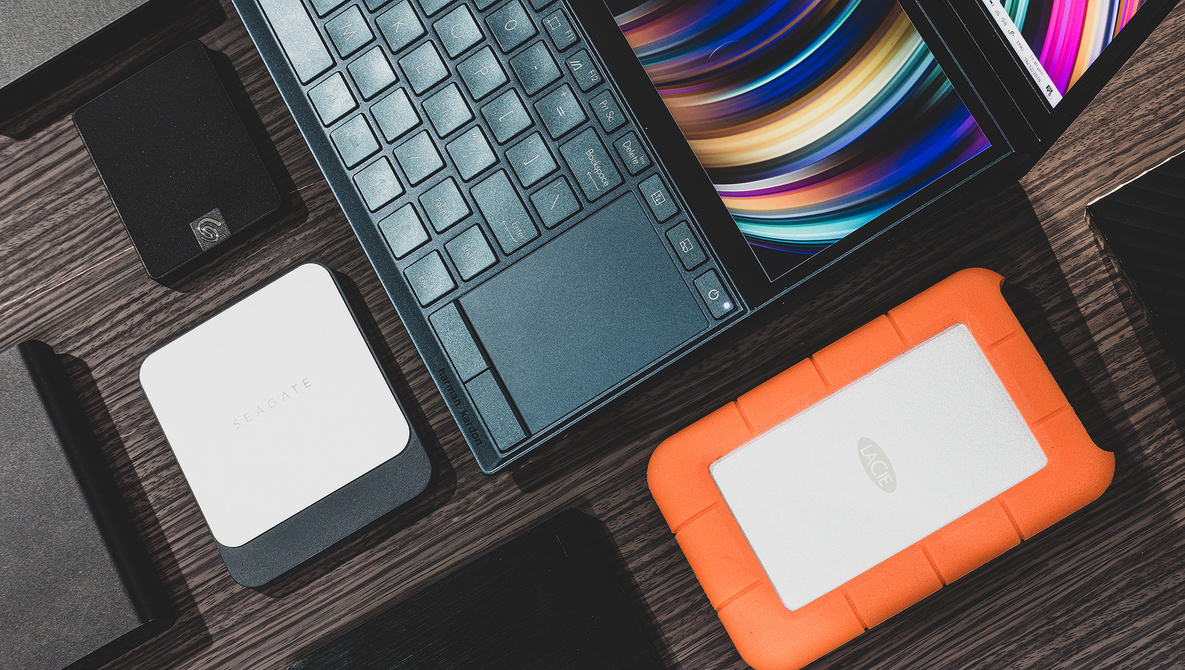
If you’ve been having trouble keeping your photos in an organized yet future-proof way, then check out my thoughts on the issue here.
Now that every digital device is getting more and more portable, photographers are also becoming more efficient and flexible in terms of working conditions. With the availability of very portable yet efficient machines, we are now able to back up, process, and forward our photographs even before leaving the location. But what exactly should we be using? Why is it better to have external drives instead of just relying on the on-board drives of our laptop computers?
Storage and Working Drive Dilemma
The common dilemma for photographers, specifically those who generate many digital photos in a short span of time, is that our files can very easily bulk up the on-board storage of our computers. Especially since digital camera sensors are getting bigger and bigger in terms of resolution, the standard storage on a consumer-level computer such as a 13-inch MacBook Pro, for example, can fill up in a matter of weeks or months for a full-time photographer (or a matter of days for those who shoot weddings), and we have to take into consideration the fact that not every photographer can afford a computer with massive storage. So, what is an effective practice to keep our files organized even when we work with multiple external drives?
Now, this isn’t really anything set in stone, but is simply my personal preference that might be quite helpful for photographers in terms of tidying up your computers, and at the same time, making sure that all your photos are safe, backed up, and easily accessible when you need to revisit them.
Lightroom Catalog
Personally, one of the biggest advantages of Adobe Lightroom Classic for me is the very efficient catalog organization that it does. For as long as you intentionally place your photos somewhere accessible for your catalog, it will be quick to locate and work on any photo, no matter how long ago it was taken. That is why even if I use other post-processing software like Capture One and Luminar, my original raw files are cradled and pampered by the Lightroom catalog.
Outsourced Storage
That said, I keep my Lightroom catalog files on a specific folder on my external drive. Along with the catalogs are the raw files of a specific time period (usually per quarter of the year), all the Lightroom previews, and even the master copies of the edited TIFF files.
The basis of this is the simple fact that I want all the interlinked files to be on the same drive, where they can basically “find” each other easily. Keeping the catalog file on the computer when the raw files are on an external drive seems pointless, because without the external drive, the catalog is pretty much useless. Using smart previews on the internal drive may seem a workaround; however, I prefer accessing the actual files, since I pay attention to the smallest details when I post-process my images. In line with that, having the previews on the external drive also proves to be more efficient, because though they may not take as much space as the raw files, previews of very big Lightroom catalogs can also get very bulky. In my experience, I’ve had catalogs with previews that took up to 30 to 40 gigabytes of my internal storage. That’s a good 10% of the capacity of a consumer laptop. Now, it may seem to be quite a drag to have to bring external drives everywhere you go, but if you compare it to the consequences of having to tidy up your storage every few weeks, I wouldn’t mind carrying an external drive, especially since external SSDs are getting smaller and smaller nowadays.
Quick Switching
Another benefit of keeping your catalog workspace in an external drive is that it becomes very easy for one to switch computers. If for some reason you have to use a different computer for even just a day, all it would take is plugging it in and opening the catalog from the external drive just as you would on the other computer. Yes, cloud storage is an efficient way of doing this, too. But do consider that not everyone, in fact, most people I know, would prefer not to pay for additional cloud storage.
Spinning Drive Versus SSD
Now, the question is, should we prefer the traditional (I can’t believe I’m using the word traditional when referring to tech) hard drives or the new solid state drives? What are their differences and when should we choose either one?
In the most superficial view, SSDs are generally faster than spinning disk drives. This is one of the main reasons why most manufacturers are adapting to this trend. But in addition, solid state drives are said to be more resilient to being carried around by the mere fact that they do not have any moving parts. That makes perfect sense. So now, obviously, I would prefer to use an SSD as my everyday drive compared to the older spinning drive. My personal method is to have many portable SSDs that contain everything, sorted per period of time, and labeled accordingly.
Here’s the other end of the spectrum. Hard drives are said to last longer than SSDs in terms of archiving our photos. Also, for backup, I wouldn’t want to spend much more on very big SSDs. That’s why my personal backup hub is a 6 TB hard drive that can back up at least six of my smaller SSD units. This way, I can keep my SSDs with me for easy access and faster processing wherever I go and back them up every few weeks onto my larger hard drives at home.
Less to Lose
As a preference, I also choose to use relatively smaller capacity devices (500 GB each) instead of opting for 1 or 2 terabyte drives. This follows a very simple principle that if I end up losing one, I only lose 500 GB and not anything bigger. Because you never really know when a storage drive might fail you, and really, it’s not a matter of brand or manufacturer; getting your files corrupted is a matter of bad luck. I personally haven’t experienced such a disaster, but I constantly make an effort to minimize what I would lose if ever that happens.