

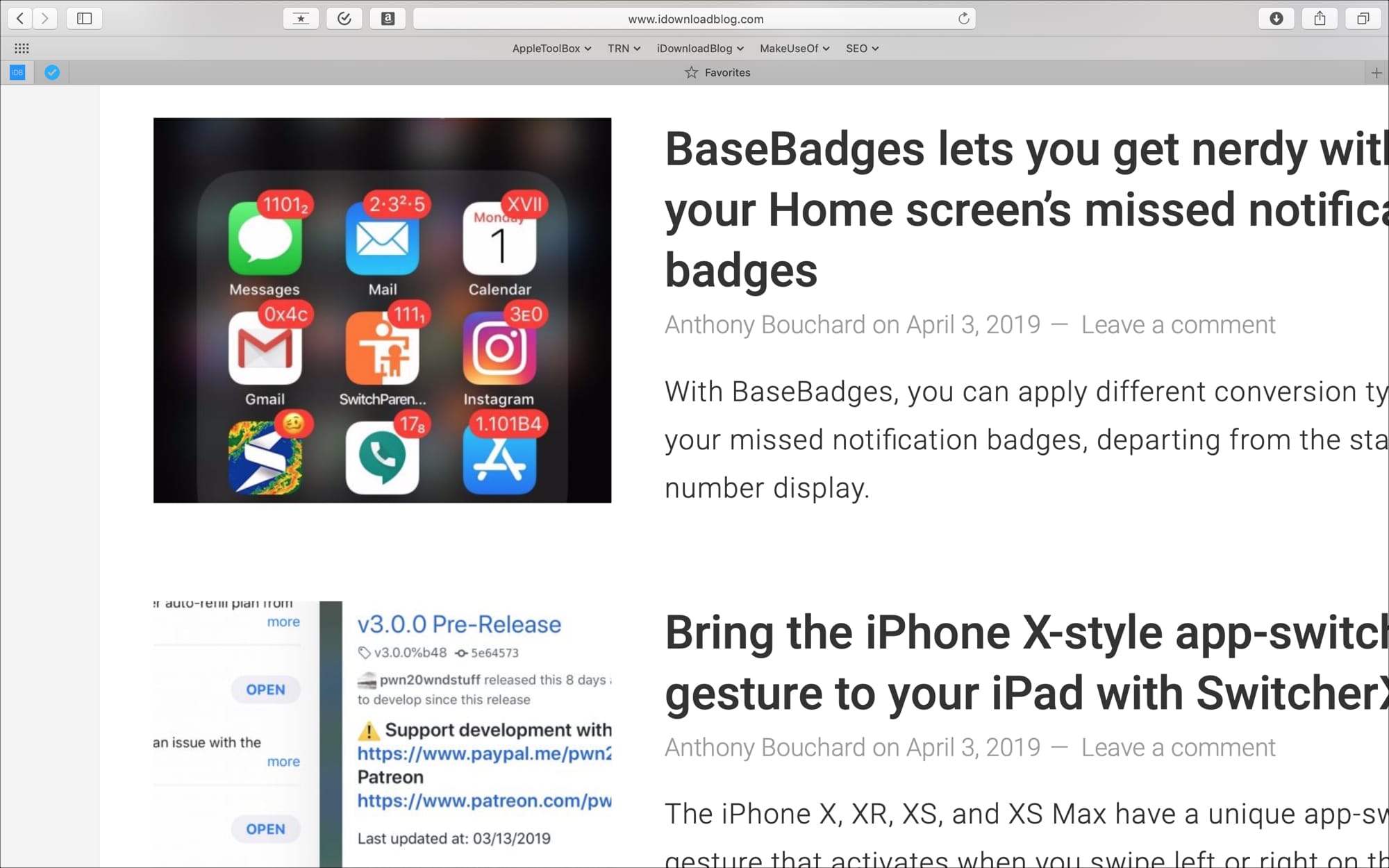
Have you ever visited a website where the content was so
small you had trouble reading it? Or maybe you’ve seen a webpage where the
content was completely oversized? Safari has a handy zoom feature that you can
adjust not just for the current site you’re visiting, but for specific sites or
all sites automatically.
Here’s how to use Safari zoom to automatically make websites larger on Mac.
Zoom in on specific websites
Since Safari is smart enough to remember, you can adjust the
zoom level for the current site you’re on and the next time you visit, that
zoom level will be applied. You have a couple of ways to do this.
- Click View > Zoom In from your menu bar.
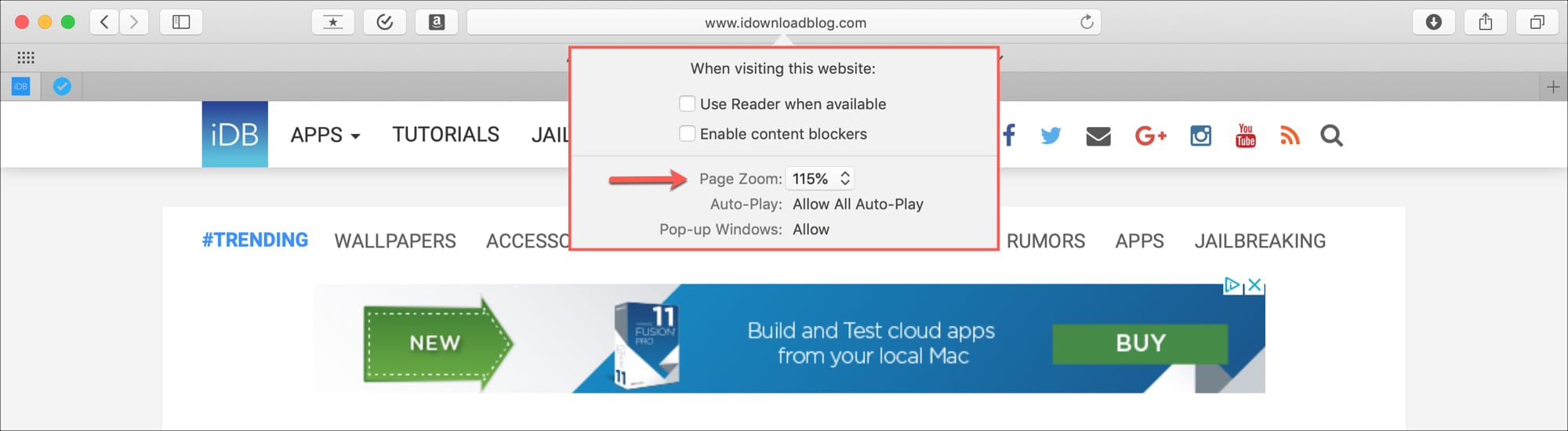
- Click Safari > Settings for This Website and
adjust the Page Zoom in the pop-up box.
You can also use the pinch open gesture on your trackpad to
increase the zoom level. However, Safari will not remember the zoom level if
you use this option.
If you want to just make
the text bigger rather than zoom in on the entire page, you can do this as
well.
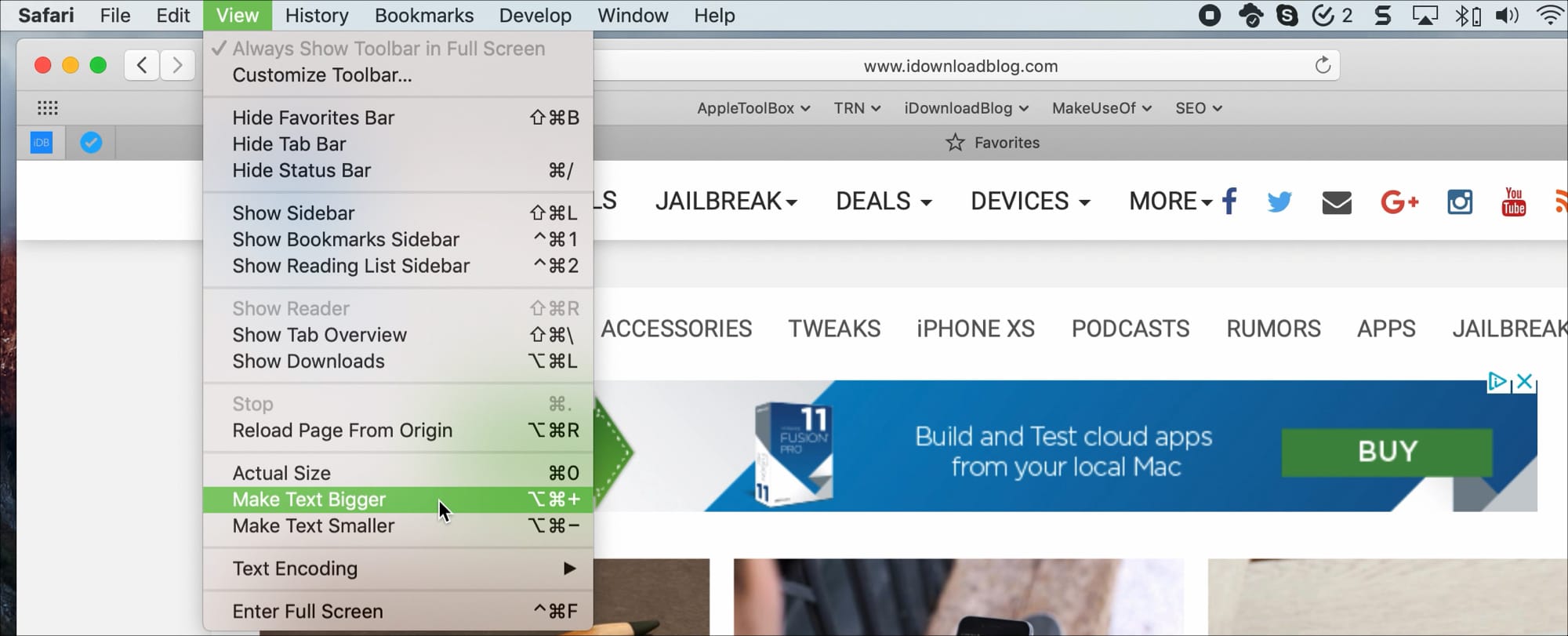
Click View from
your menu bar and hold down the Option key. You’ll see the Zoom In and Zoom Out features change to Make Text Bigger and Make Text Smaller.
Zoom in on all sites automatically
If you would like all sites you visit in Safari to be zoomed
in at a certain level, it’s easy to set up.
1) Open Safari and click Safari > Preferences from the menu bar.
2) Click the Websites tab.
3) Select Page Zoom from the left.
Now on the right side, you’ll see all of those sites that
Safari remembers the zoom level for as well as pages you have open currently.
Here, you can adjust them individually if you like.
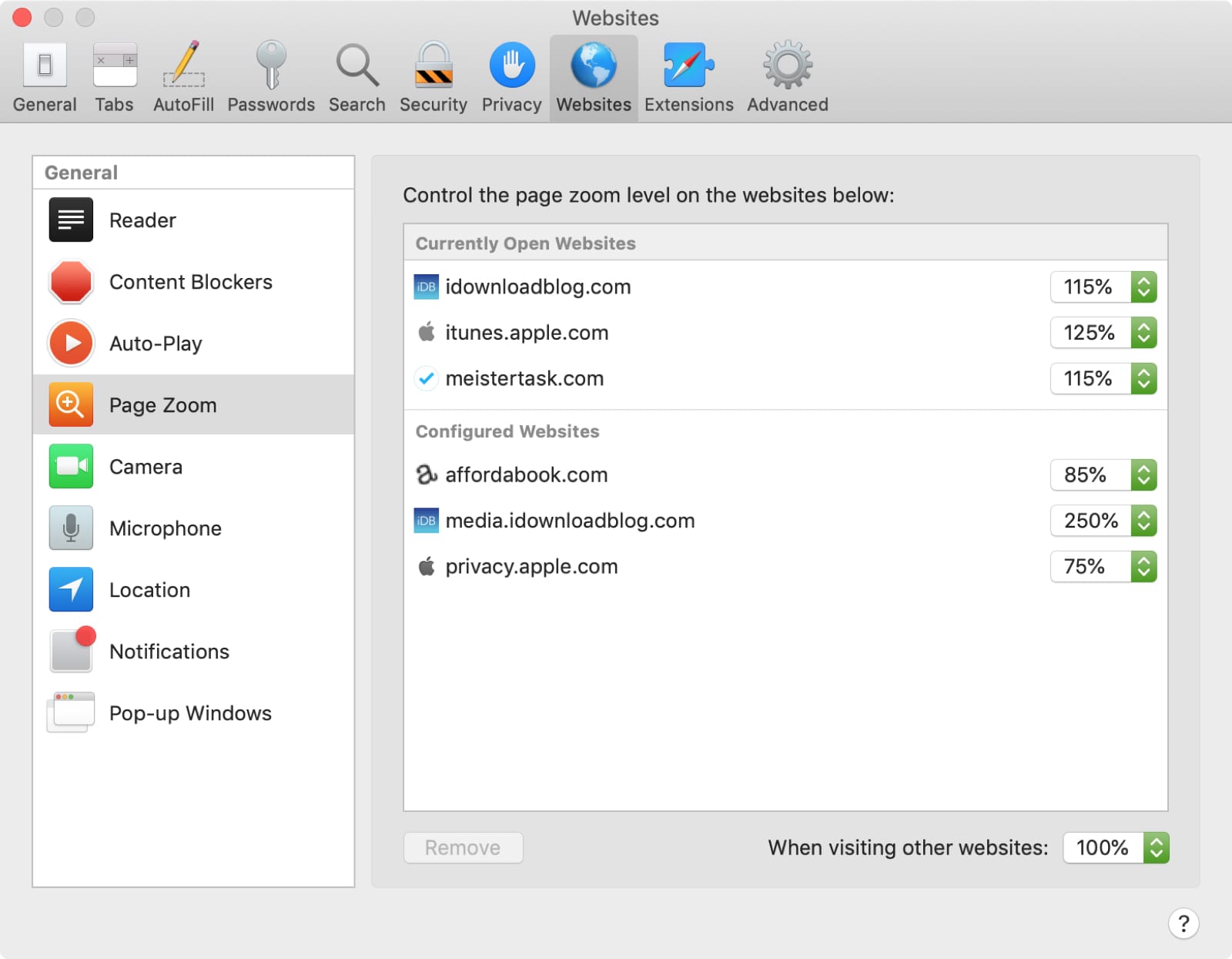
4) Click the
drop-down box next to When visiting
other websites at the bottom and select the zoom level you want. Keep in
mind that this will not apply to
those in your Configured Websites list, only to other pages you open.
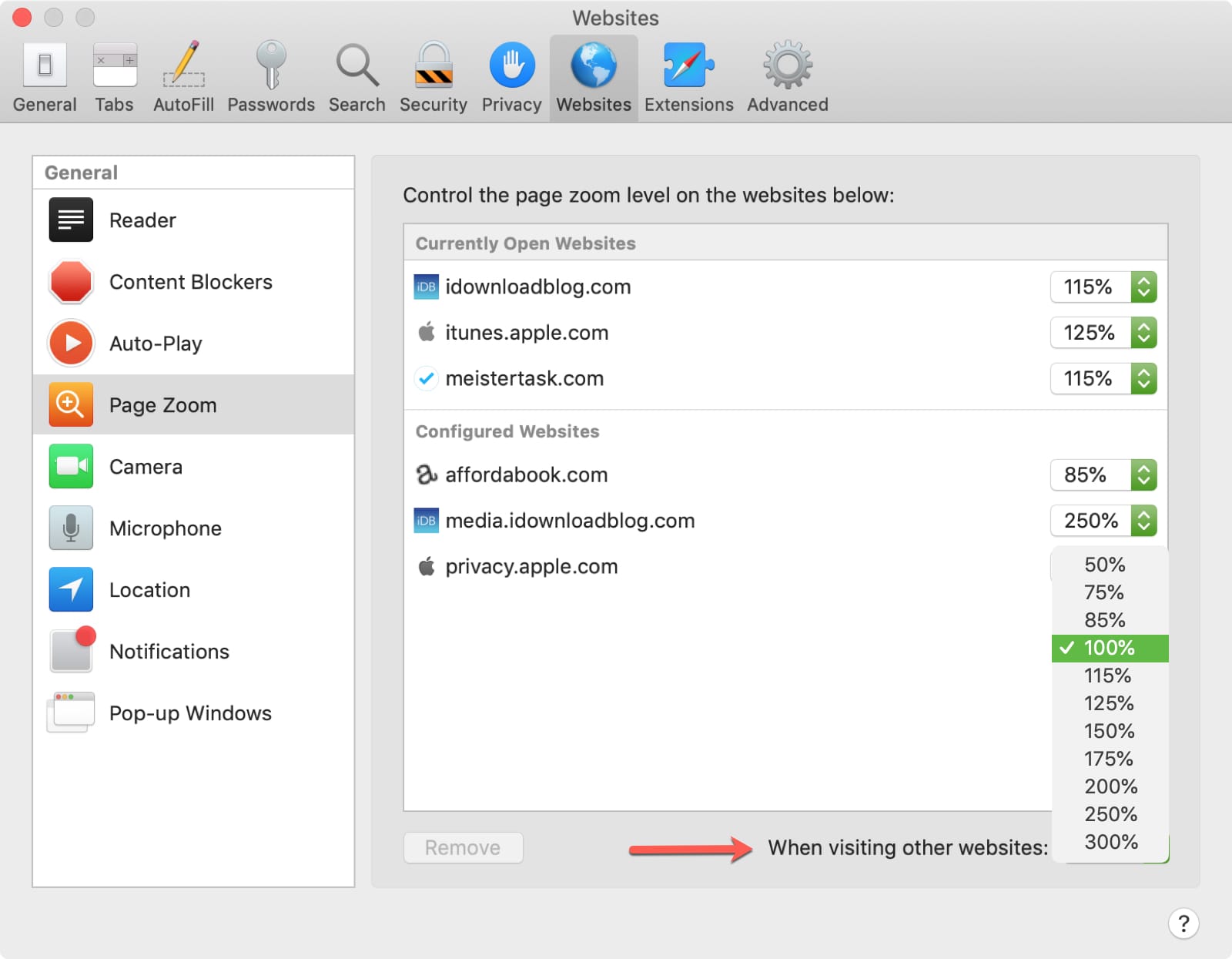
If you want all pages to open at a certain zoom level and don’t want individually configured sites, remove the sites listed under Configured Websites.
You can select one at a time and click Remove or click the first one, hold your Shift key, and click the last one to select them all. Then click Remove.
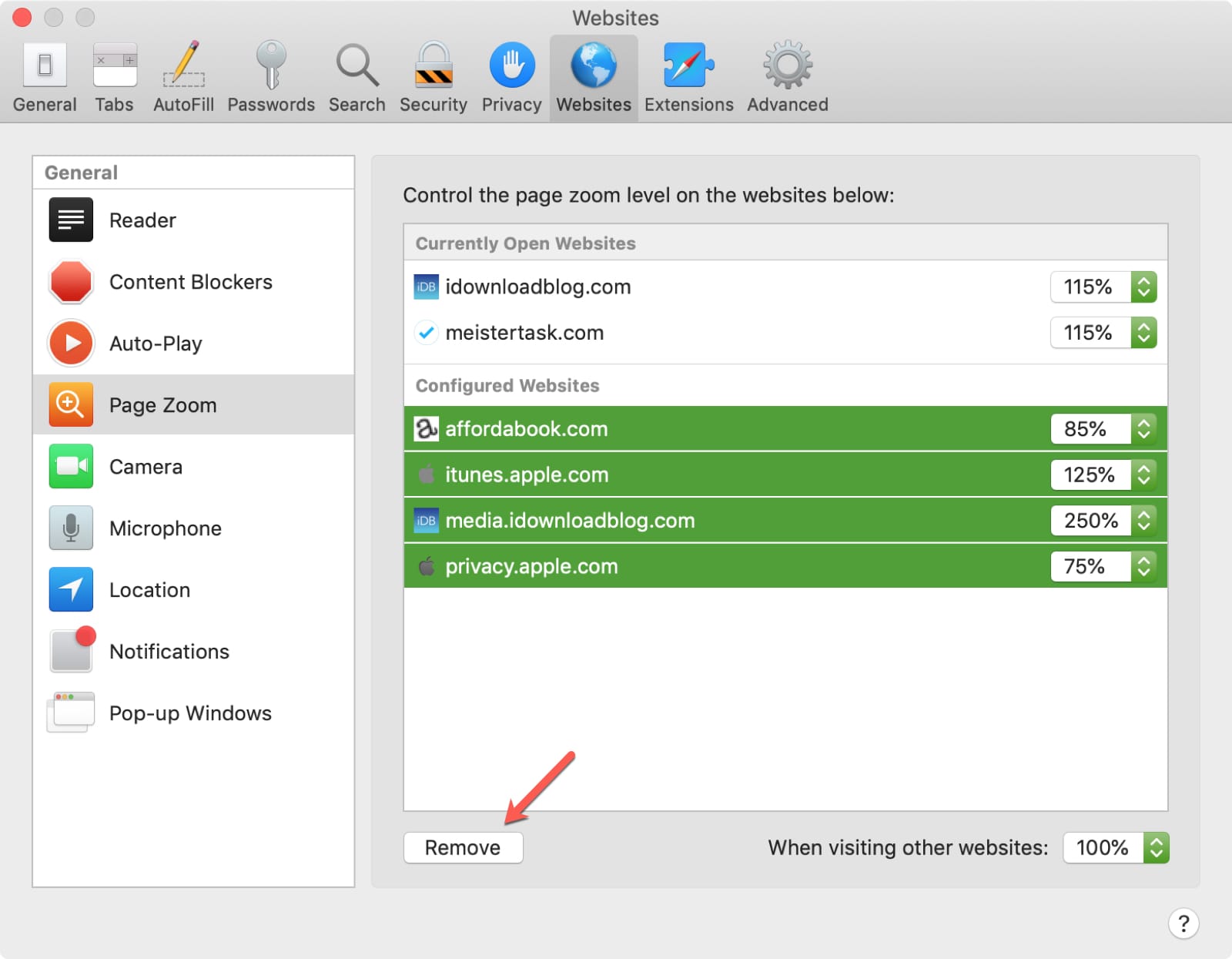
Once you remove sites from the Configured Websites list, all
webpages that you visit will open at the zoom level you choose under When visiting other websites.
Wrapping it up
With websites all over the internet at different sizes, it’s
nice to have a way to zoom in or out so that you can enjoy them better. This is
also convenient for those with a visual impairment who need them at a certain
size.
What are your thoughts on the Safari zoom feature? Is this
something you have found you needed?
Check out our tutorials section for other helpful how-tos and tips.