

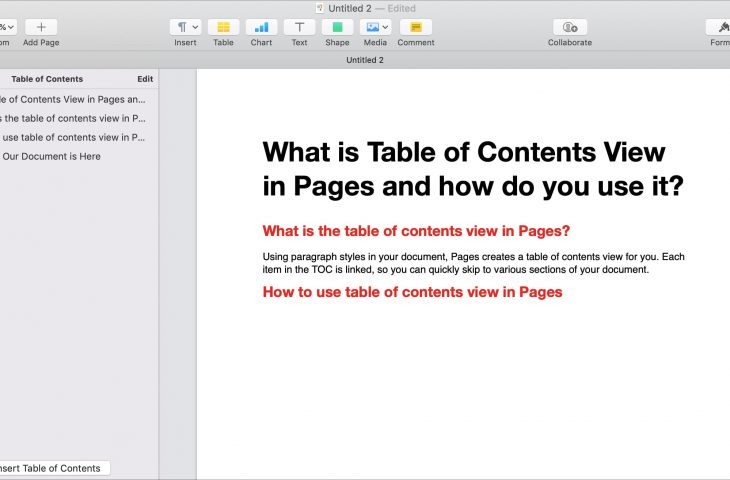

Apple has added a new feature to the Pages application; a table of contents view. This handy tool automatically creates a table of contents in the sidebar for you to navigate your document easier. Plus, you can pop that TOC right into your document if you like.
This tutorial walks you through how to use the table of
contents view in pages.
What is table of contents view in Pages?
Using paragraph styles in your document, Pages creates a
table of contents view for you. Each item in the TOC is linked, so you can
quickly skip to various sections of your document.
In addition, you can choose which paragraph styles should be
used in your TOC. So, if you use specific headings or body styles, you can add
those to the table of contents.
The table of contents updates automatically as you create
your document. And it can be used right within your document as well.
How to use table of contents view in Pages
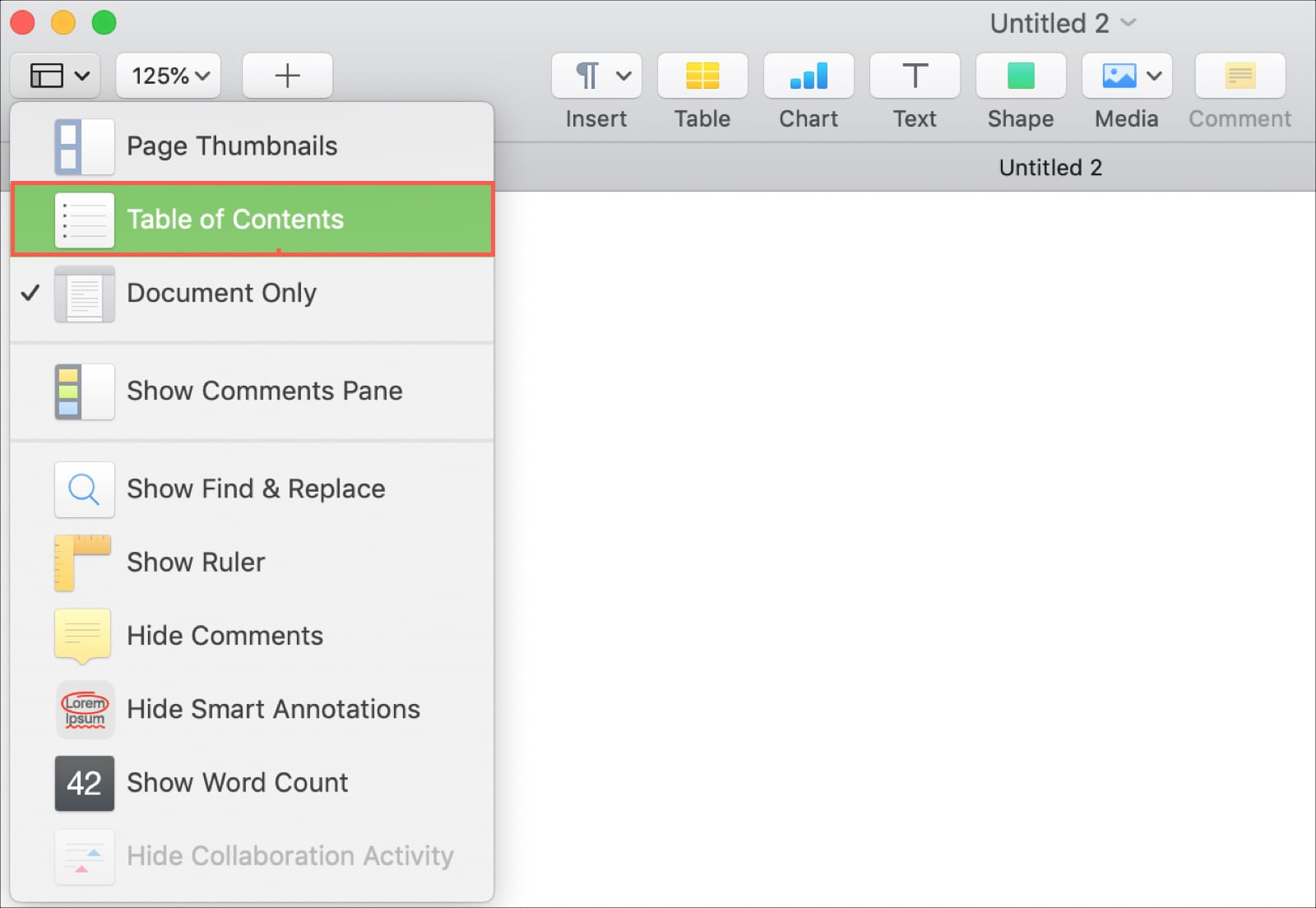
Open Pages and then enable table of contents view if you don’t
see it. Click the View button in the
toolbar or View from the menu bar
and select Table of Contents.
Apply paragraph styles
If you’ve opened an existing document, then you’ll likely
see the table of contents populated. If you don’t then you’ll need to apply paragraph
styles. So for that case and for those creating a document from scratch, here’
how to do that.
1) Select your
text.
2) Tap the Format button to open the formatting
sidebar.
3) At the top
under Text, select a style from the
drop-down box.

As you apply the formatting, you should see the table of
contents on the left update.
Change paragraph styles in the TOC
Now, maybe you are using specific paragraph styles in your
document that you want the table of contents to recognize. You can change this
easily.
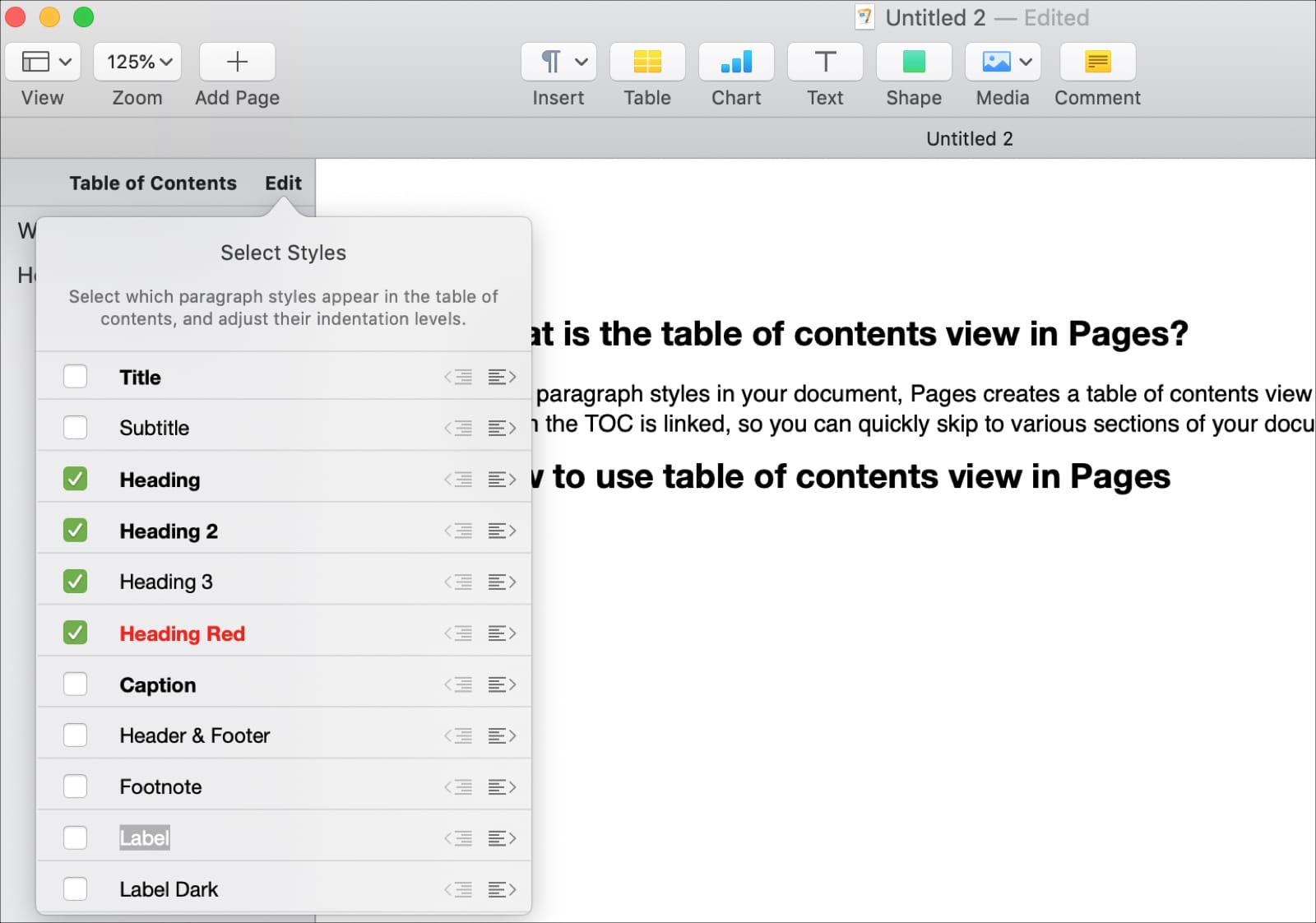
1) At the top of
the table of contents sidebar, click Edit.
2) Check the
boxes for the styles you want to use. By default, the heading styles are likely
checked.
3) You can then
click away to close the TOC edit window. And then continue to select text and
apply styles if needed.
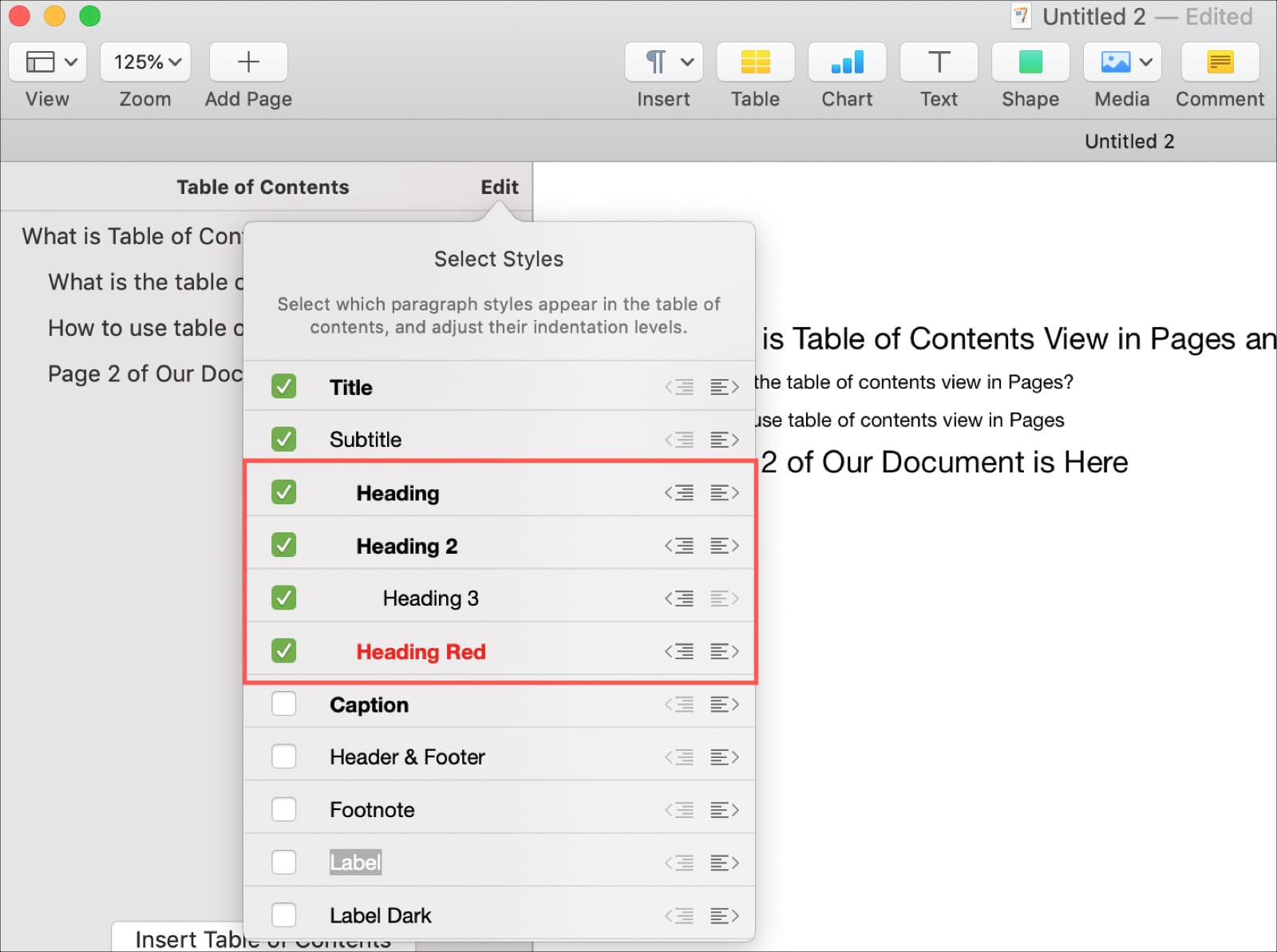
By default, the table of contents left-aligns your entries. But
you can change this just like you do the paragraph styles that are used. For
example, you may want the title left-aligned and headings indented for sort of
an outline view.
Next to the style you want to indent, click the Indent button. You can increase the
indent a couple of times until the button is grayed out.
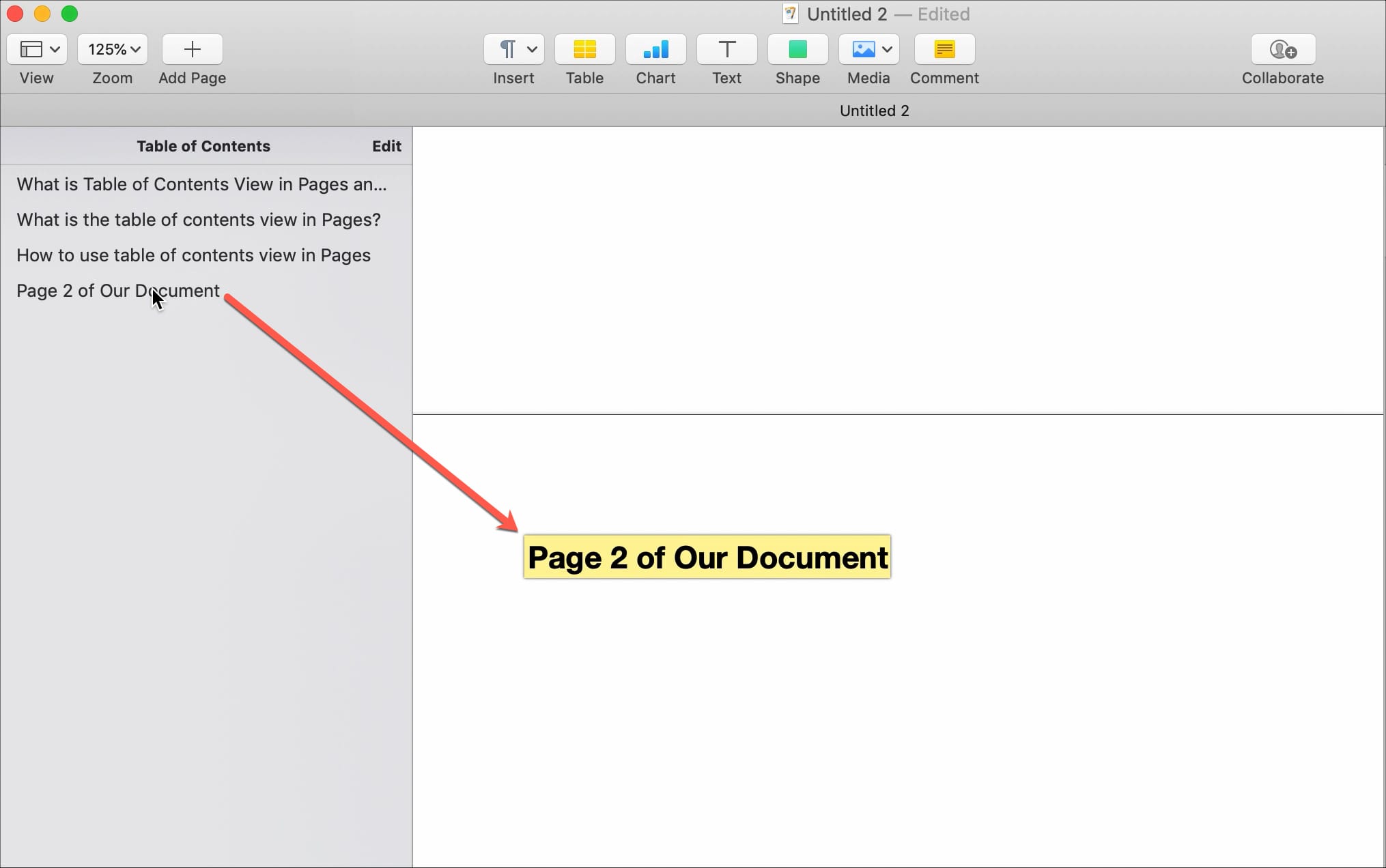
Navigate with the table of contents
If you have a lengthy document, using the table of contents
to jump to different sections is very handy. Each piece in the TOC is linked.
So, just click the items in the table of contents and you’ll be taken right to
that spot in your document.
Insert the table of contents into your document
For longer documents, you might want to take advantage of
that table of contents and use it in your final document.
1) Move your cursor
to the spot in the document where you want the table of contents.
2) Click Insert Table of Contents from the
bottom of the sidebar.
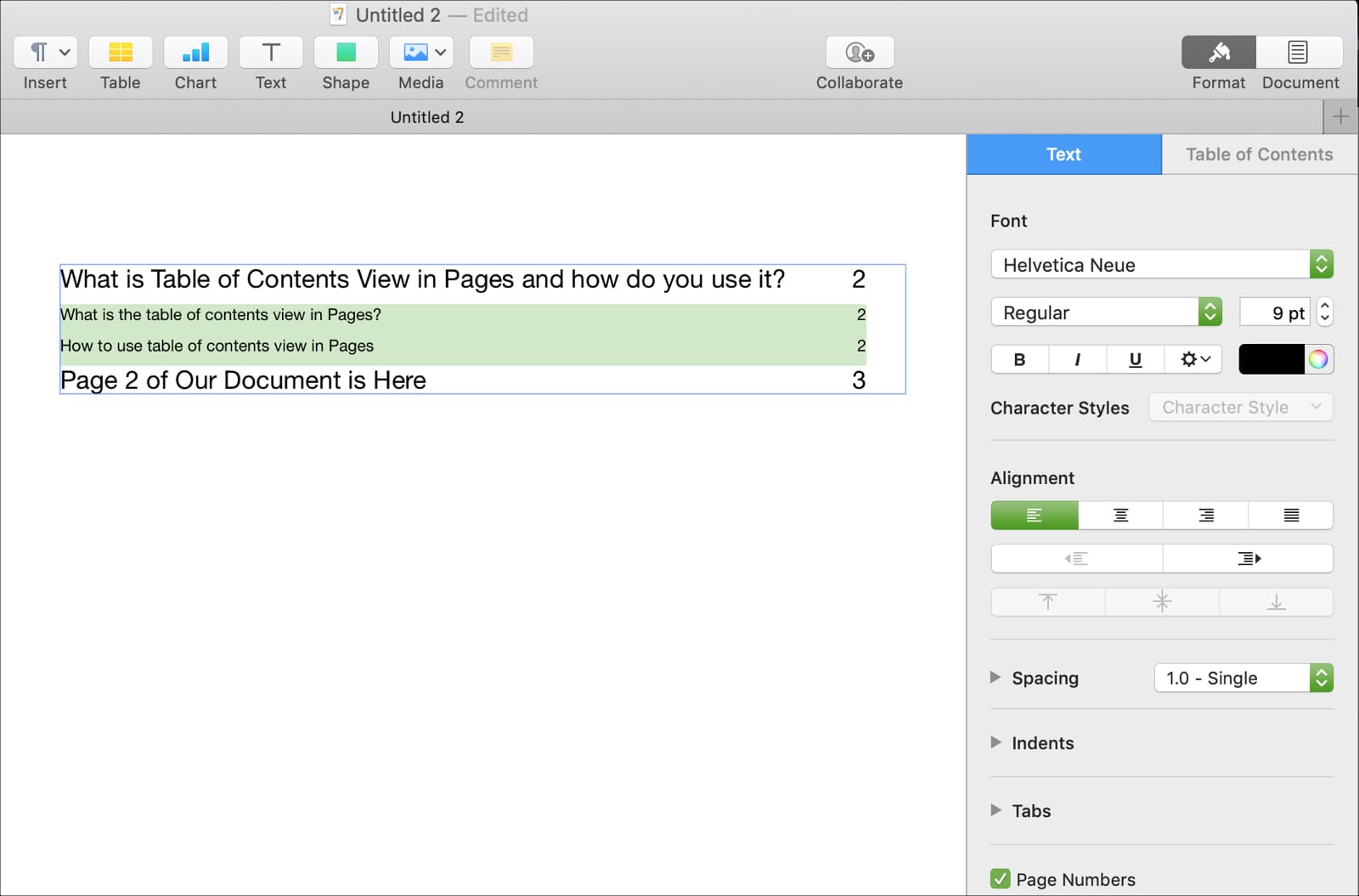
You’ll then see the TOC in your document with page numbers
and applicable formatting. The table of contents in your document automatically
updates just like the view in your sidebar.
Once the table of contents is in your document, you can change the formatting for it if you like. Select the table which will then be highlighted. In the Format sidebar on the left, make you can change things like font, alignment, indents, and page numbers.
Wrapping it up
This really is a nice feature to include in Pages. Not only
is it helpful for navigating lengthy documents but makes including a table of
contents within the document much simpler.
Are you going to use the table of contents view in Pages? If so, pop back over and let us know what you think of it. And remember, you can always ping us on Twitter too!