


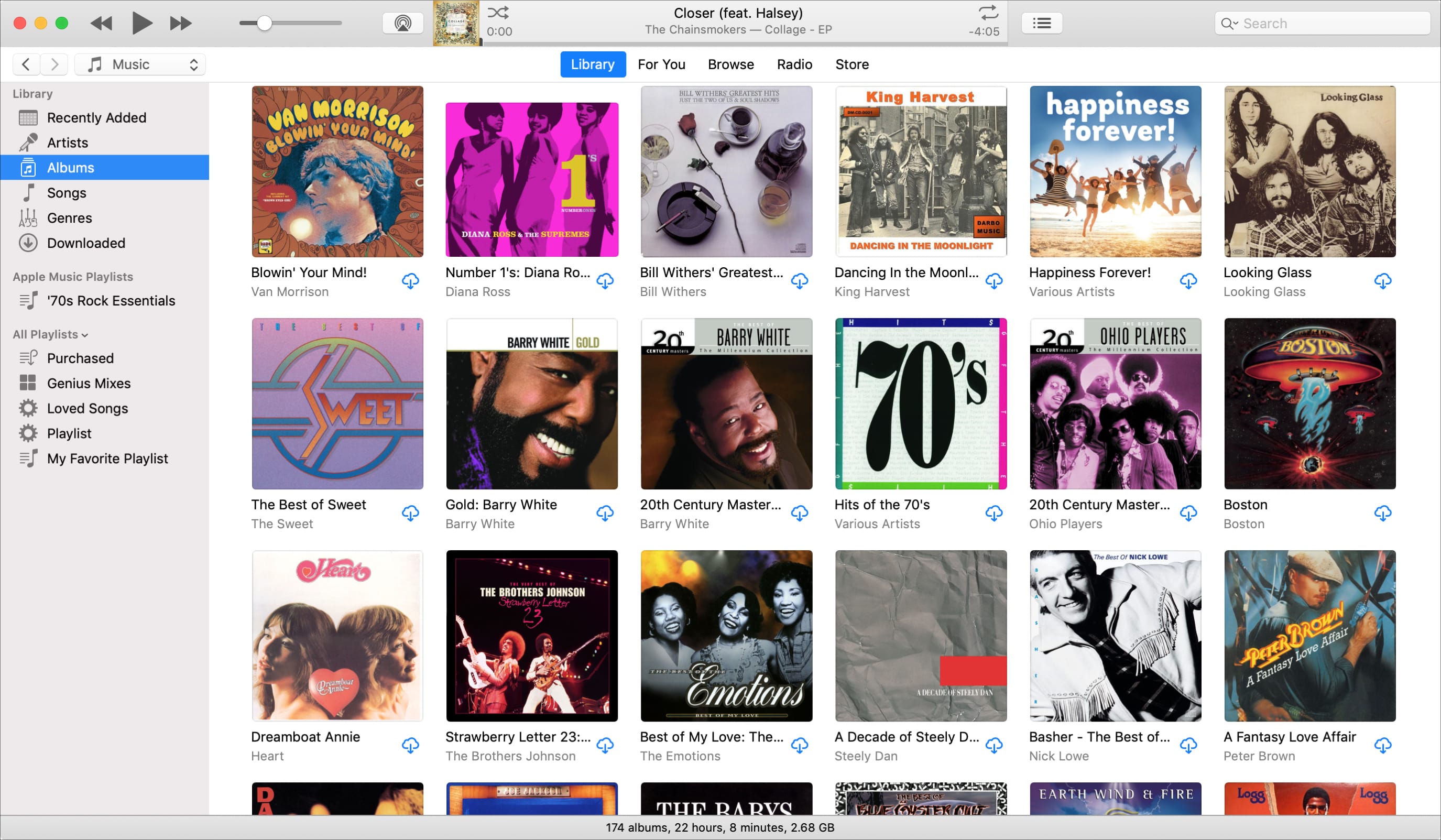
With all of the music you have in your library, it can be tough to find what you want. So, taking a few minutes to adjust the options you see and the ways you can sort it is worth your time. You might prefer to choose music by genre, artist, or album. Or maybe you always head to your song list.
However you decide to play your music, make sure that your library is set up to make it easy for you. Here’s how to sort your Music library in iTunes any way you want.
Adjust the view options for your Music library
In order to get the sorting options you want, you’ll want to
start by adjusting the view options. This lets you choose what you see for your
artists, albums, songs, and genres sections. Keep in mind that some sections
offer more viewing options than others.
For each section, click View > Show View Options from the menu
bar.
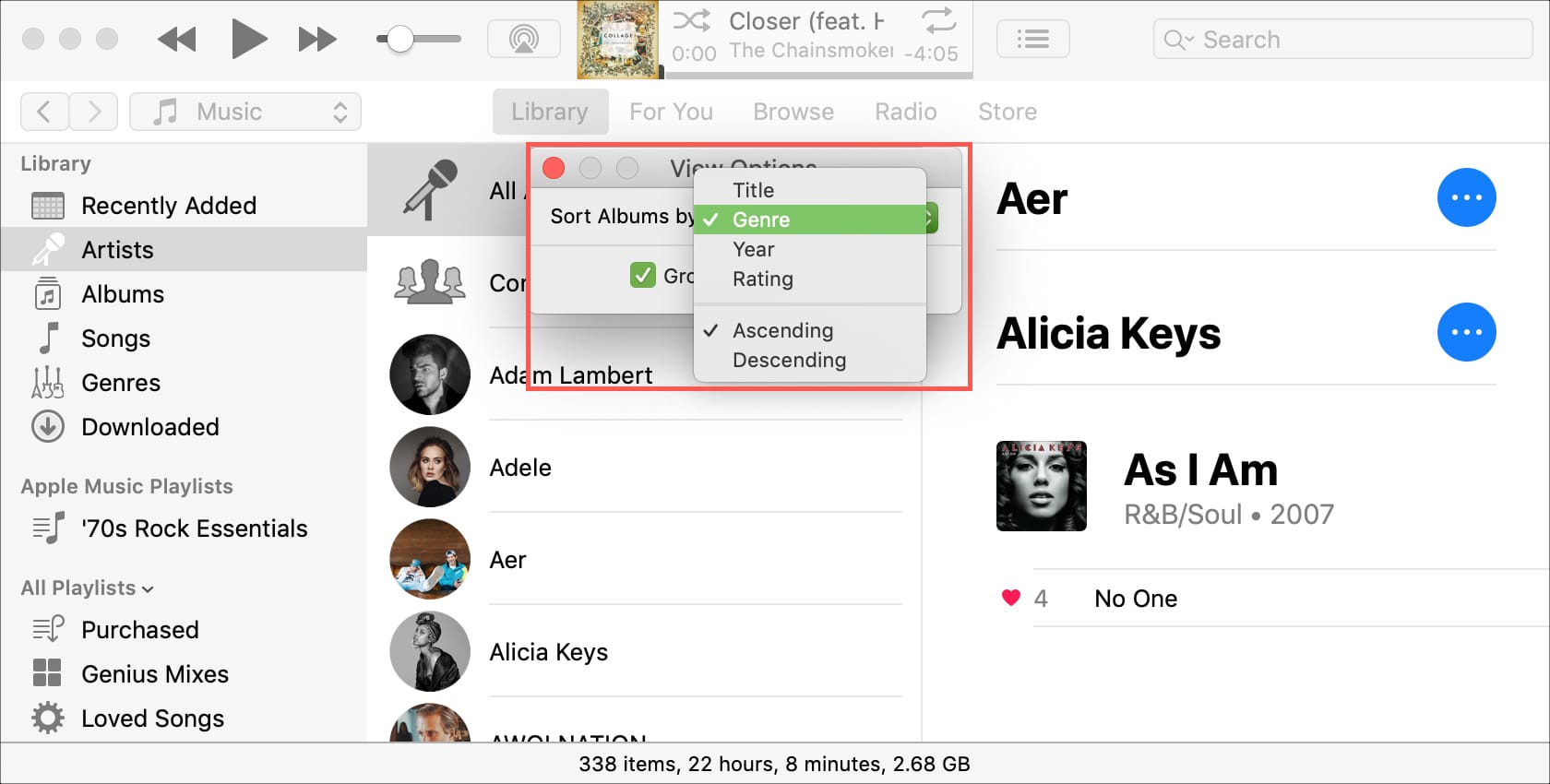
Artists: The view
options for artists include title, genre, year, and rating. Plus, you can select
from ascending or descending order and check the box to Group Compilations if
you like. Making changes here immediately changes the sort order for the
Artists section.
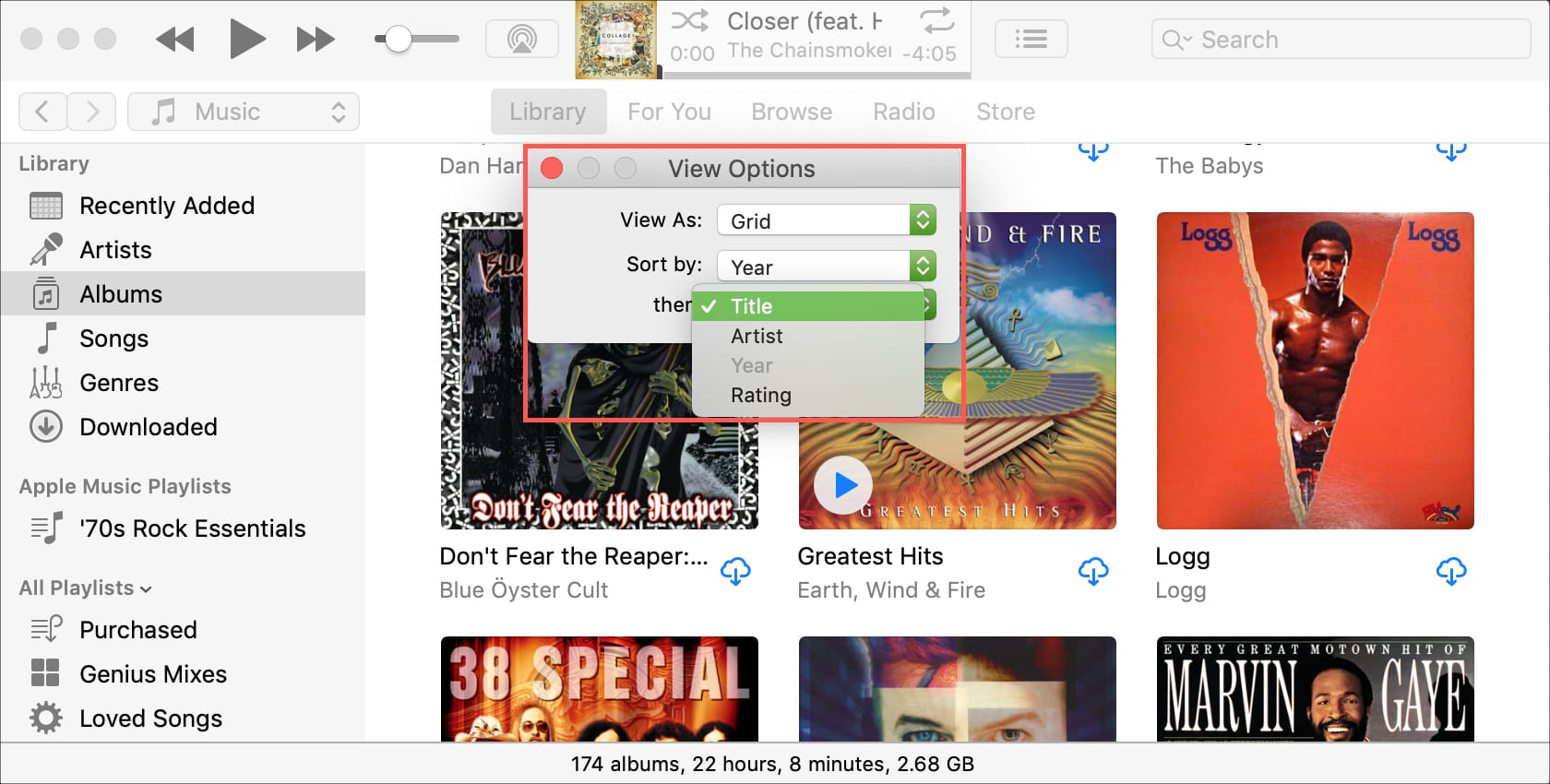
Albums: For your
albums, you can pick between a list or grid view. Then, select the first layer
of sorting with the same options available as with Artists. Next, the Albums section lets you pick a second
layer of sorting. This lets you really drill down on how this section is
sorted, and again, adjustments here change the sort order right away.
Songs: This
section truly lets you take control of the options you see and how you can
sort. Start at the top by selecting the main sorting order. You can then choose
to see categories under music, personal, stats, and file. Plus, you can adjust
the sorting and other miscellaneous categories towards the bottom.
Since there are a lot of details available for the Songs section, take your time and check
the boxes for what you really want to see.

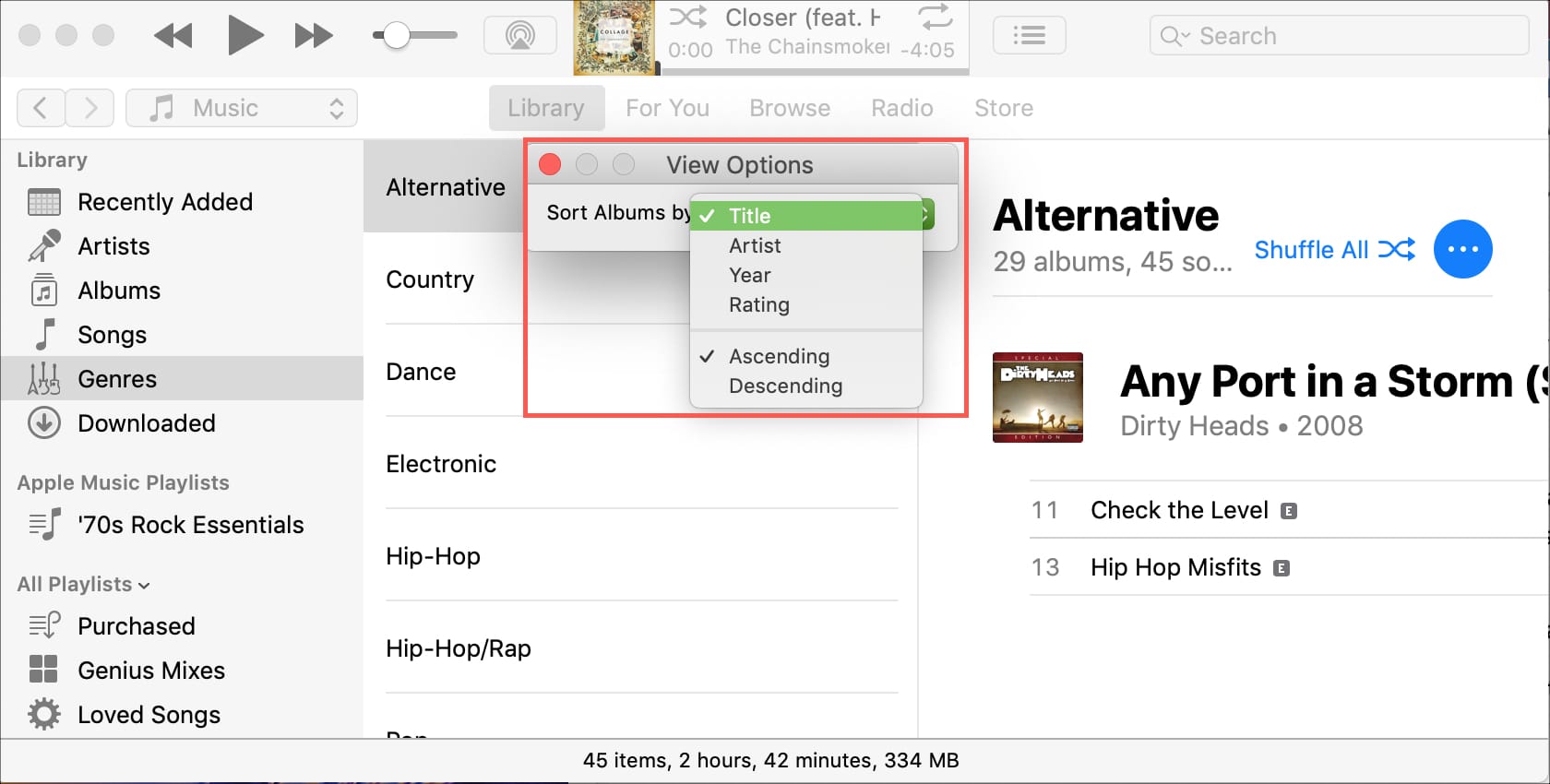
Genres: The
Genres section has similar options as Artists. Just pick the sort order for
albums from title, artist, year, or rating.
Change the sort order for your Music library
Now, you can easily change the sort order for each section
of your library by clicking View > Sort by from the menu bar. So,
any adjustments you make in the Show
View Options settings can be changed quickly here too.
The real convenience of adjusting the Show View Options as described above is when it comes to the Songs section.
You’ll notice when you’re in that section and you select Sort by, the options you choose in Show View Options will display.
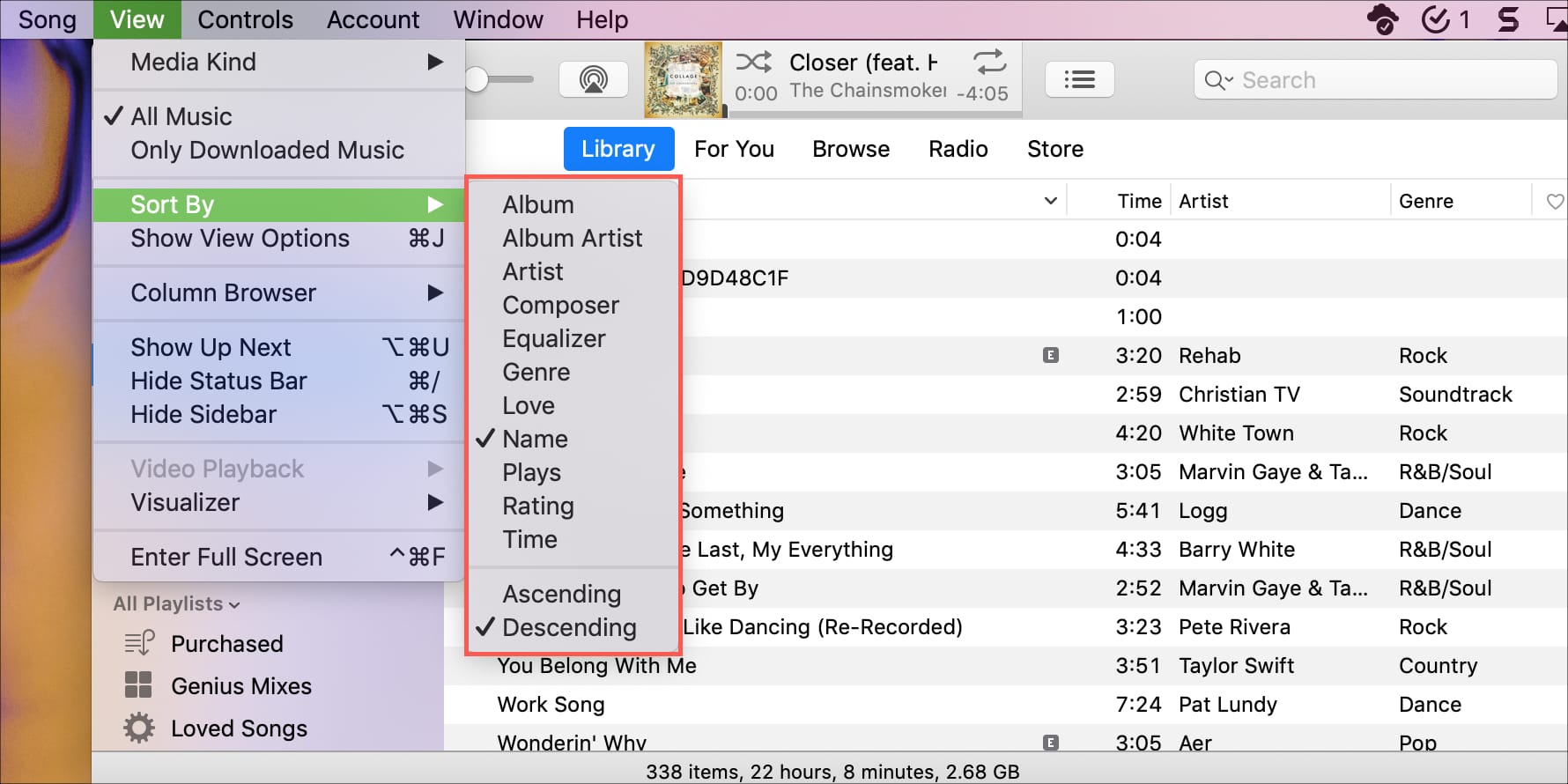
The other sections don’t offer this, so it’s something you
should definitely take advantage of if you use your Songs section the most.
You’ll also see that when you’re in the Songs area, you can click the headers at the top to sort. So again,
the options you choose in the Show View
Options area are what you’ll see and be able to sort by.
Wrapping it up
Changing the viewing options and sort order for your music
library can save you a ton of time later. You’ll be able to find the song, artist,
or album you’re in the mood for much faster. And, since you can sort your library
any way you want, it’s worth a few minutes of your time.
How do you like to sort your library and which section do you head to the most? For me, I always go to the Songs section and usually sort by name or artist, so the flexible options there are ideal. What about you?